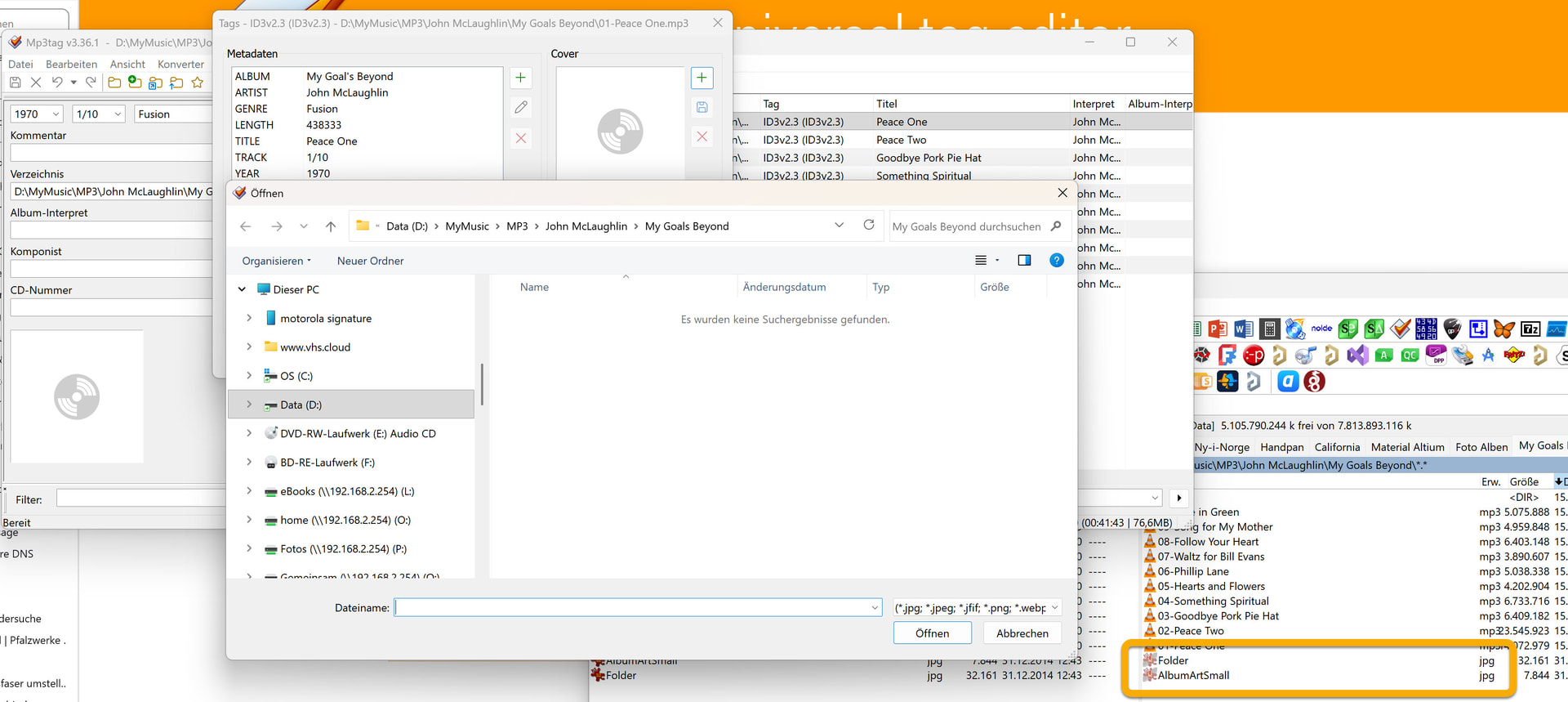
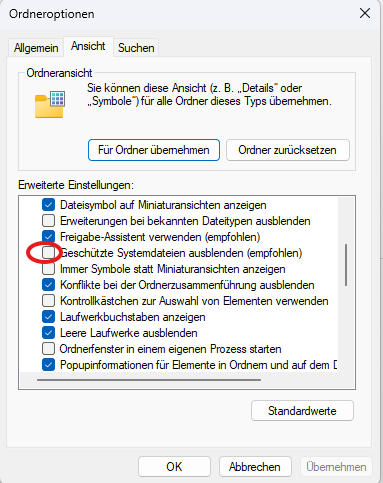
If you have set the explorer not to show hidden files, then you won't see the hidden files folder.jpg and albumartsmall.jpg in the explorer-generated file selection dialogue.
Just a quick note:
You can also drag and drop a picture onto one or more (previously) selected files.
Simply drag the file from your Explorer and drop it into the placeholder for the cover art on the left-hand side in the Tag Panel (the one with the disc symbol).
No need to open Alt + T (Erweiterte Tags) for that case.
Remember to save your changes with Ctrl+S or Datei -> Tag speichern
(File -> Save Tag).
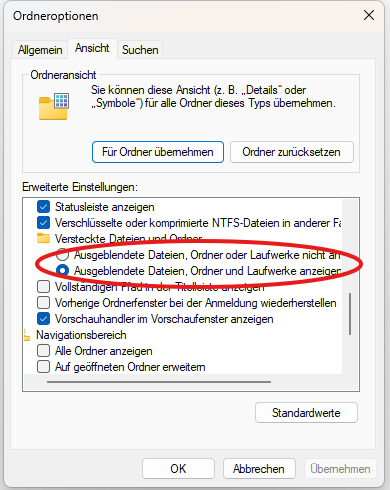
The two jpg files are hidden. Totalcommander shows both files, Windows Explorer does not. In "Ordneroptionen - Ordneransicht" is "Ausgeblendete Dateien, Ordner und Laufwerke anzeigen" active.
If both attributes, H and S are set, even the Explorer own setting doesn't help. Such a file remains "hidden".
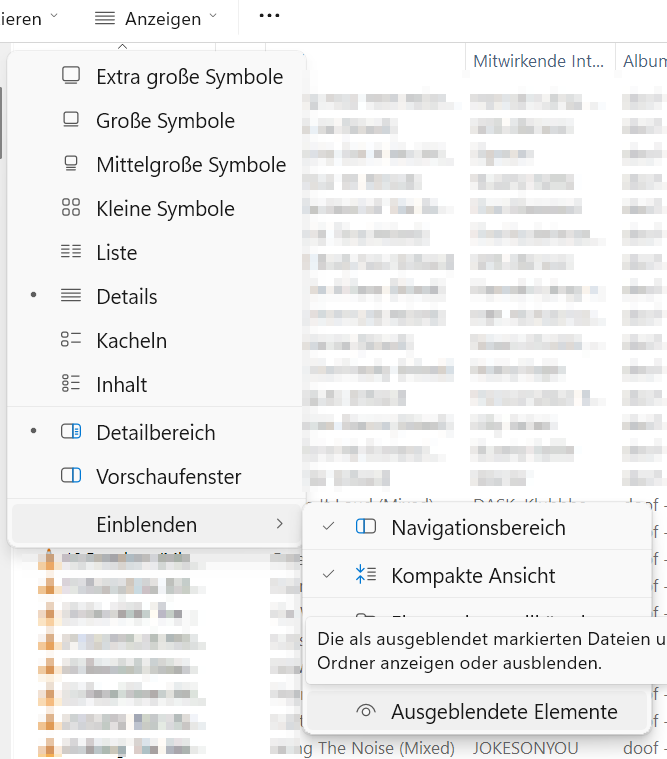
Only if the H attribut is set without S it becomes visible with Anzeigen -> Einblenden -> Ausgeblendete Elemente
You can show ALL attributes in a CMD window with ATTRIB
Zeigt Dateiattribute an oder ändert sie.

ATTRIB [+R | -R] [+A | -A] [+S | -S] [+H | -H] [+O | -O] [+I | -I] [+X | -X]
 [+P | -P] [+U | -U] [+B | -B]
 [Laufwerk:][Pfad][Dateiname] [/S [/D]] [/L]

  +   Legt ein Attribut fest.
  –   Löscht ein Attribut.
  R   Attribut für "Schreibgeschützte Datei".
  A   Attribut für "Archivdatei".
  S   Attribut für "Systemdatei".
  H   Attribut für "Versteckte Datei".
  O   Attribut für "Offline".
  I   Attribut für "Datei ohne indizierten Inhalt".
  X   Attribut für "Keine Scrubbingdatei".
  V   Attribut für "Integrität".
  P   Attribut für "Angeheftet".
  U   Attribut für "Losgelöst".
  B   Attribut für "SMR-BLOB".
  [Laufwerk:][Pfad][Dateiname]
      Gibt die zu verarbeitenden Dateien für das Attribut an.
  /S  Verarbeitet entsprechende Dateien im aktuellen Ordner
      und allen Unterordnern.
  /D  Verarbeitet auch Ordner.
  /L  Verarbeitet die Attribute des symbolischen Links anstelle
      des Ziels des symbolischen Links.
What I just learned:
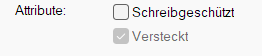
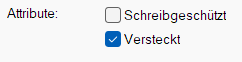
In Windows 11 a set System attribut S will be indicated by a greyed-out "Versteckt" (H for hidden) property:
This greyed-out attribute can not be changed in the Windows File Explorer GUI!
A set Hidden attribut H only (without S) is shown as normal activated "Versteckt":
these two jpg files in the screenshot are marked as system files and hidden. No idea why. Normally jpg files an my computer are not hidden and not marked as system files
So you would have to investigate who created these files and / or changed the attributes.
WMP likes to create especially files with these names and attributes.
You could verify that otherwise "normal" picture files are displayed in the search.