Hi everyone, is there a way to change / customise the "grid line" background and also the text color in the Preference? If so, can you tell me where / how to edit the file, thank you in advance.
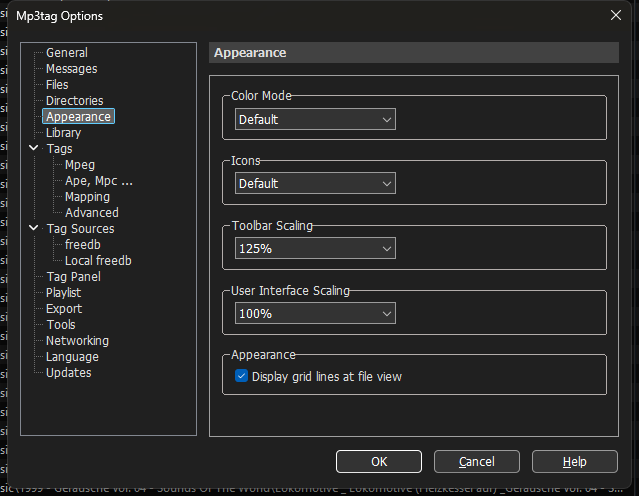
Not quite what I am looking for. I want to be able to change / customize it to a darker or lighter grey.
One more question / suggestion. In the Tag Panel, Is there a way to put in ColorRules that will correspond to the BPM? Can I paste them somewhere. I already have the color codes for the various BPMs. @Florian See below.
#70ECD4=Key is 01A, #00EDC9=Key is 01B, #92F0A4=Key is 02A, #27EC82=Key is 02B, #B1EE86=Key is 03A, #85ED4E=Key is 03B, #E6E0A2=Key is 04A, #E0C86E=Key is 04B, #FEC8AC=Key is 05A, #FFA279=Key is 05B, #FFB3BF=Key is 06A, #FF8C93=Key is 06B, #FFB4D2=Key is 07A, #FF85B4=Key is 07B, #EBB7F9=Key is 08A, #F087D9=Key is 08B, #E7B6F8=Key is 09A, #CE93FF=Key is 09B, #C0CEFB=Key is 10A, #A1B9FF=Key is 10B, #94E5F8=Key is 11A, #3ED2F8=Key is 11B, #50EBF0=Key is 12A, #01EDED=Key is 12B
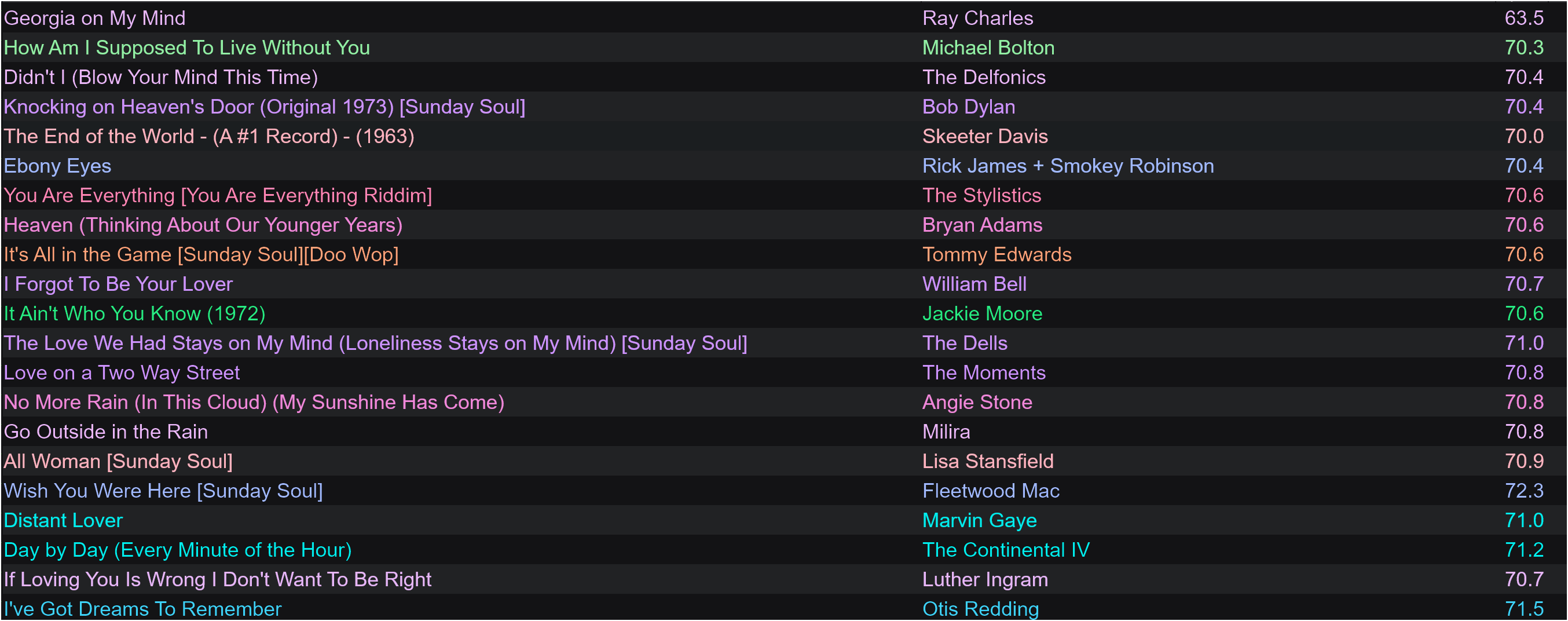
This is not possible from within Mp3tag and currently not planned to be added.
As is this.
As Florian already wrote, this is not possible.
One alternative would be to create a black&white graphical representation of the BPM like this:
(unsorted and sorted example)
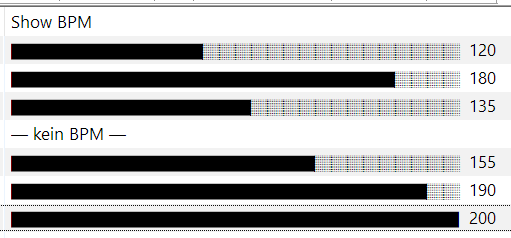
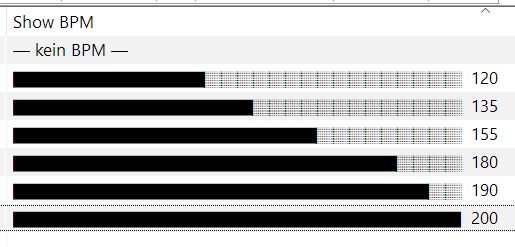
$if(%bpm%,$repeat(█,$div($sub(%bpm%,60),5))$repeat(░,$sub(28,$div($sub(%bpm%,60),5))) %bpm%,— kein BPM —)
The expression uses $repeat() to generate a fixed-length progress bar based on the %bpm% value. It maps the range 60-200 BPM range to 28 steps* (5 BPM per step), filling the completed part with █ and the remainder with ░.
If %bpm% is empty, it outputs — kein BPM —.
* Calculation: 200 - 60 = 140 and then 140 : 5 = 28
Of course, you can customise the range, steps and characters however you like. Just remember that colours are not an option.
Bummer. Thanks. I hope it gets implemented at some point. This is such an excellent program.
The last update was so appreciated.
PS: I'm not that good with scripting so, I'll let this go over my head.
The above Value is the definition for a new column in your File List.
Right-click on an existing column header, such as Title, and select Customize.
Then click on the New-button and add a Name (=new column header) and the Value:
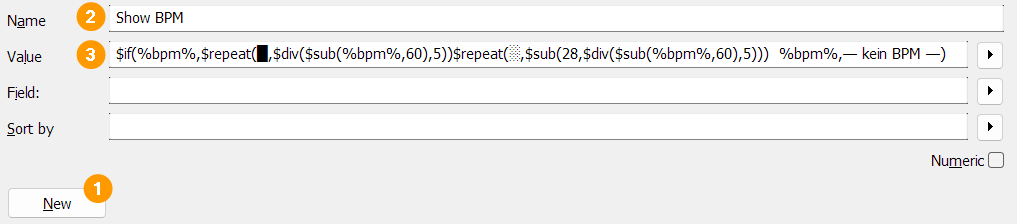
That's all 
Wow, thanks very much...