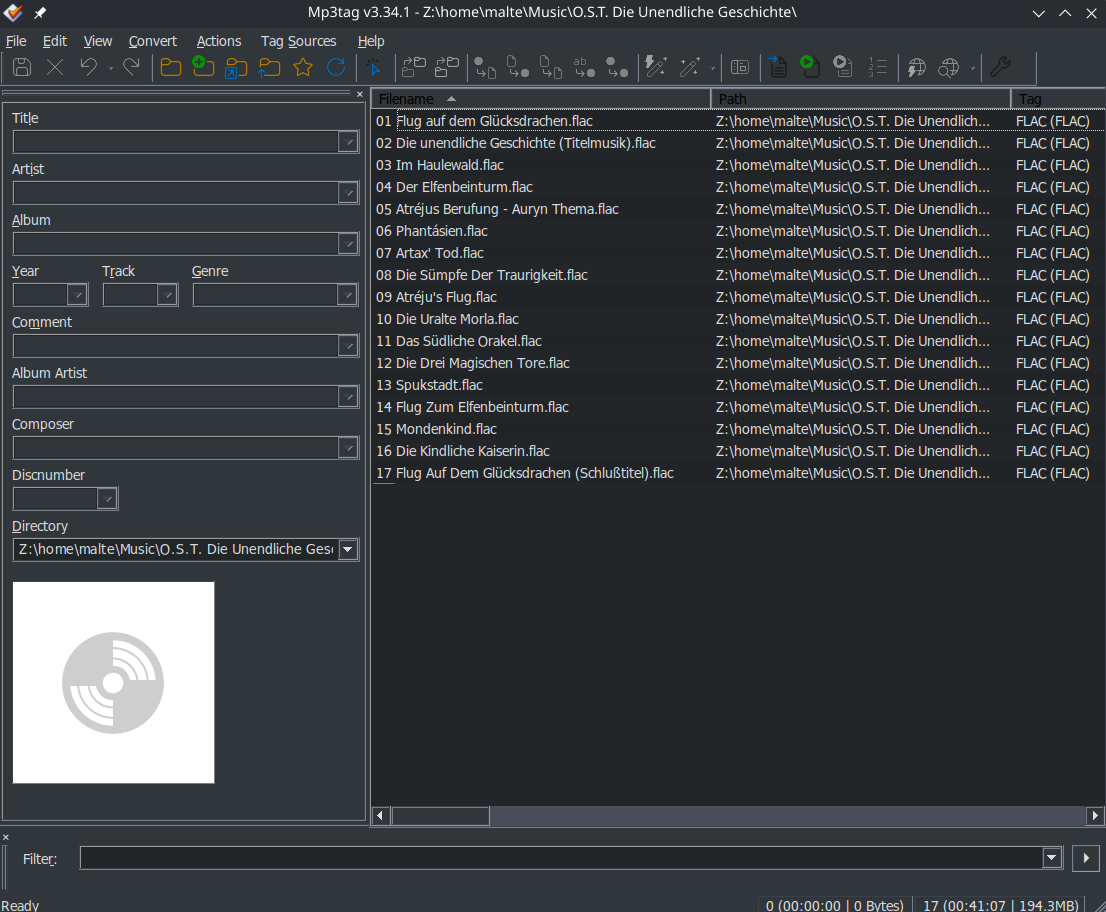
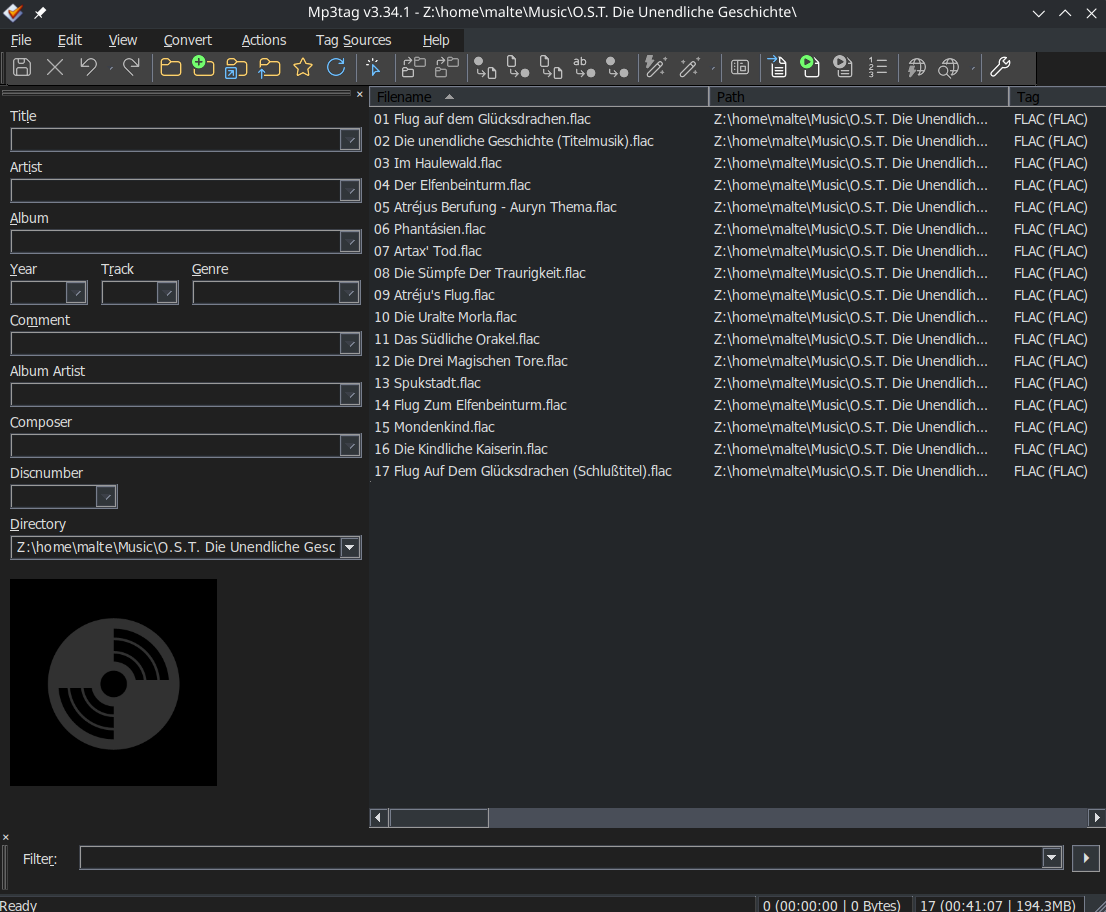
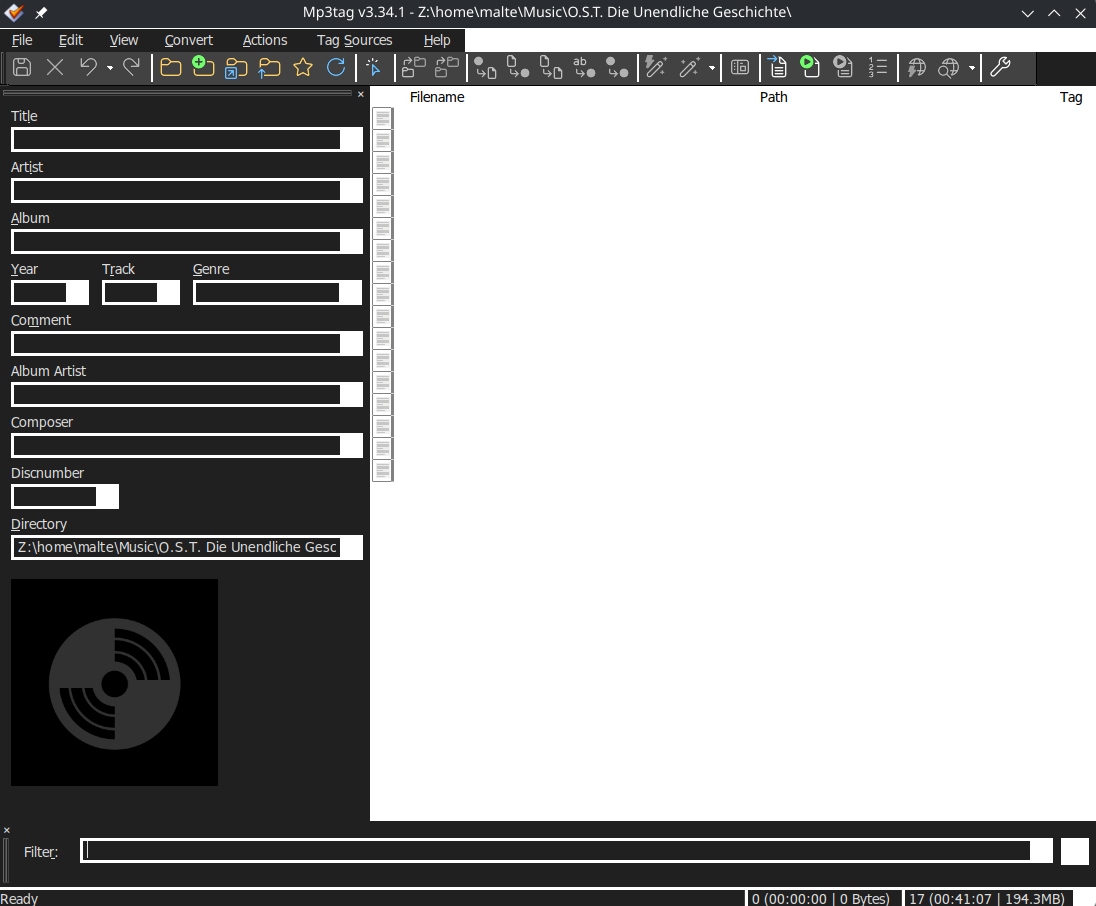
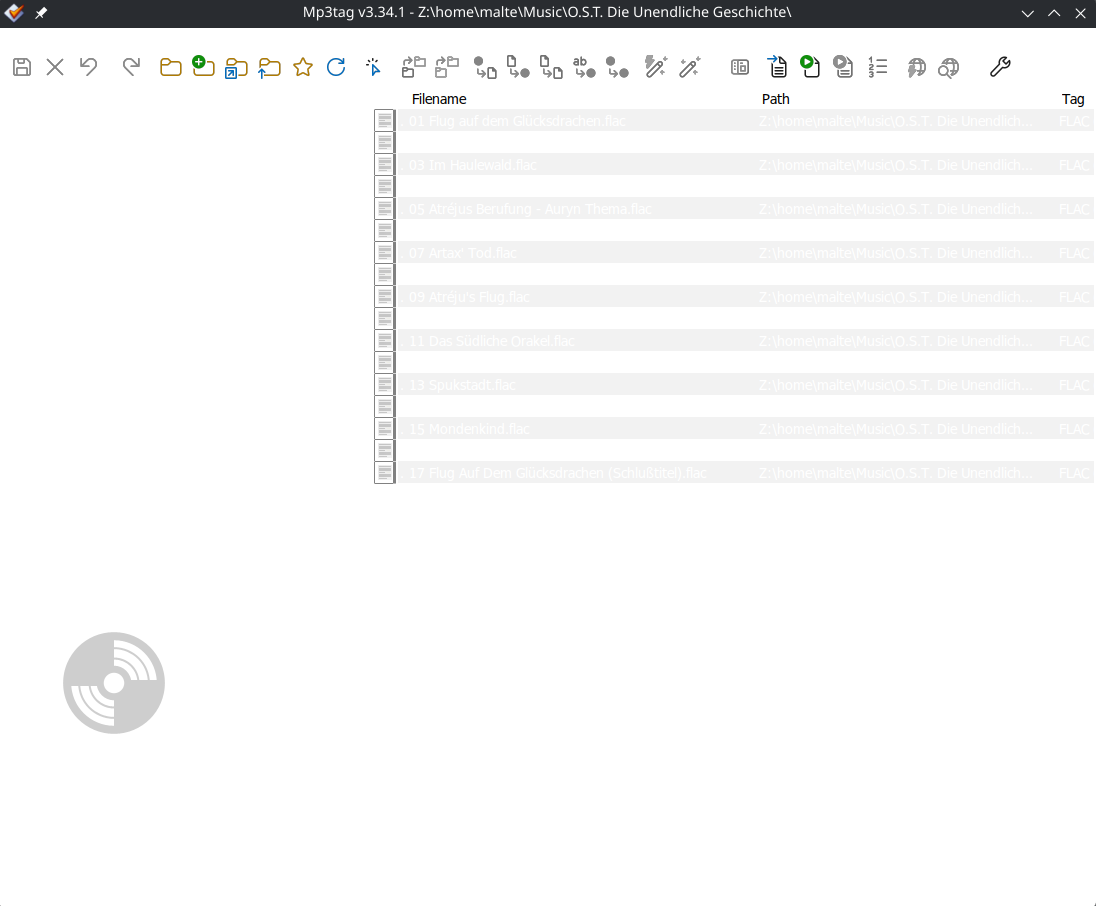
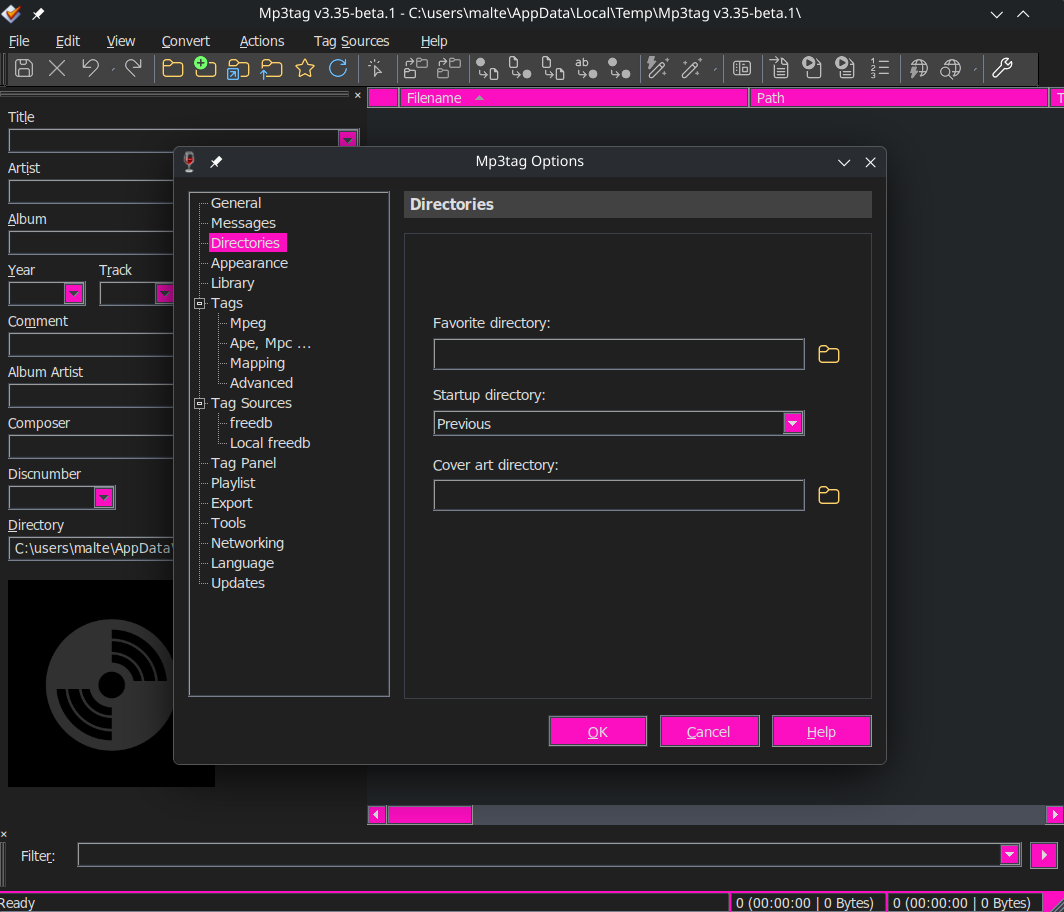
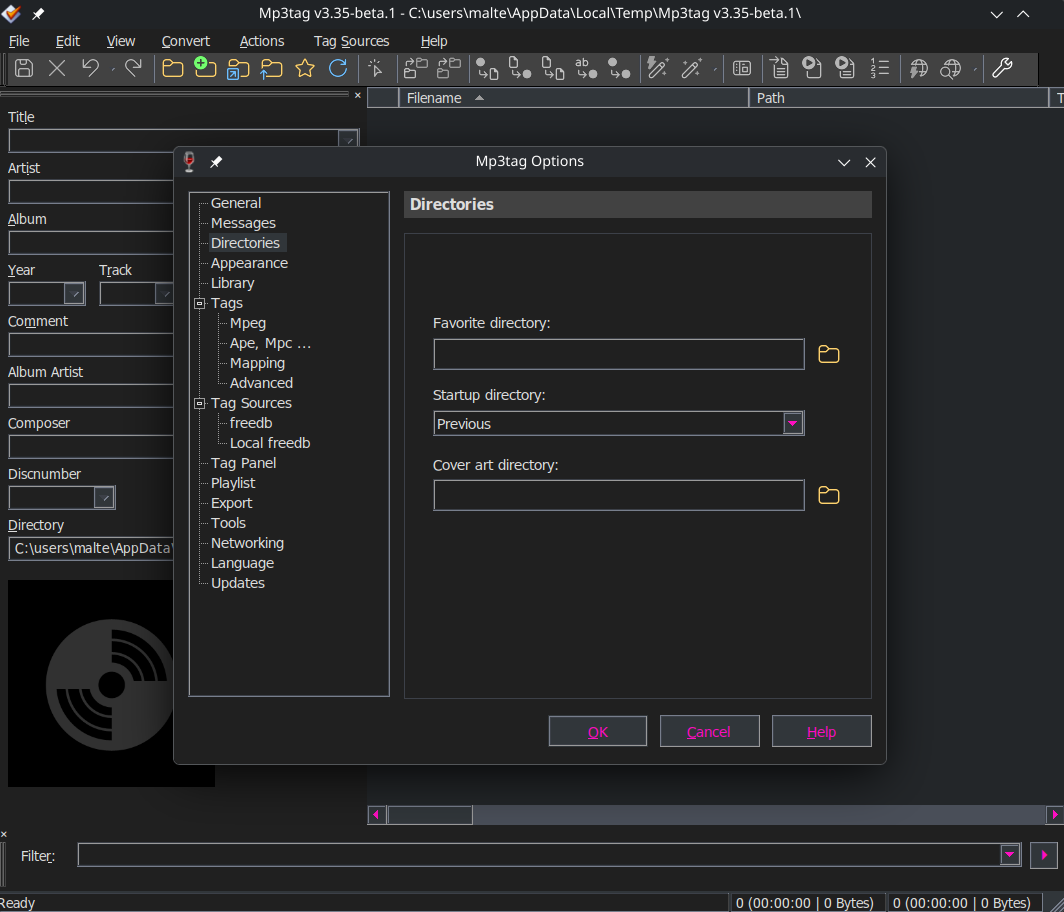
Unfortunately, most of the screen area remains as white.
This is the effect with the Display setting within Mp3tag set to Dark Mode.
Does anyone know if there is something within the Windows environment that Mp3tag depends on to properly change the unchanged white area to a dark colour?
Has any other Linux user found a satisfactory fix or workaround for Mp3tag that achieves a proper Dark Mode display?
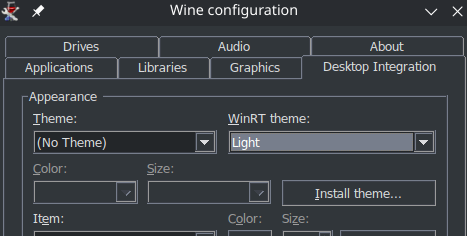
If you are running a recent version of wine, before applying the breeze dark patch, first run winecfg, then under desktop integration set Theme to No Theme.
If you still have this issue I hope this solves it for you.
Many thanks for your reply. Sorry that I did not reply sooner. It is good to know that there is a way to avoid setting up a dual-boot Windows/Linux computer - just to have a proper Dark Mode Mp3tag.
One thing I have done in the meantime is to upgrade my Linux distro (Kubuntu) to the latest version. Next I will install actual Wine - instead of depending on intermediaries like Bottles - then follow the steps that you have provided.
Many thanks Kamera. I have marked your post as a solution. Thanks to you, I now have Mp3tag version 3.31a in Dark Mode running on a Linux-only computer.
Although any Linux user who does not care about Dark Mode can still use the Bottles (and, presumably, PlayonLinux) plus Flatseal combo, I would encourage switching to Wine because it has better integration with Linux with regard to Mp3tag. For example, I can now load Mp3tag either from the Linux Desktop or Start Menu. When I used Bottles, I always had to first open a Bottle then load Mp3tag from that Bottle.
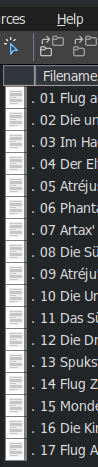
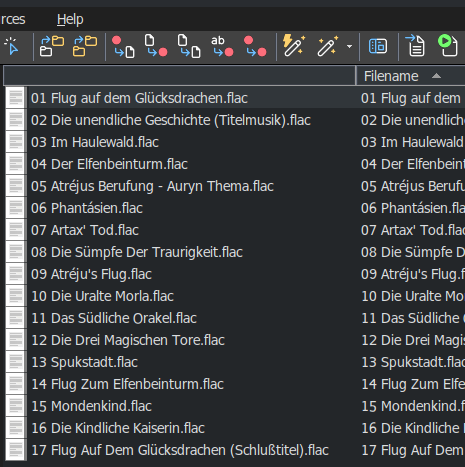
Anyone considering a switch to Linux should be aware that the icon next to the Filename column which displays a white X on a red background when there could be an issue with a file, does not work. It always displays as a text icon. This is not a deal breaker for me but it is something to be aware of.
Also, Play does not work as there is no music player installed by Wine. Maybe there is a way to get Play to work. However, I am content to play my music files using my Linux music player which I can do whilst editing in Mp3tag.
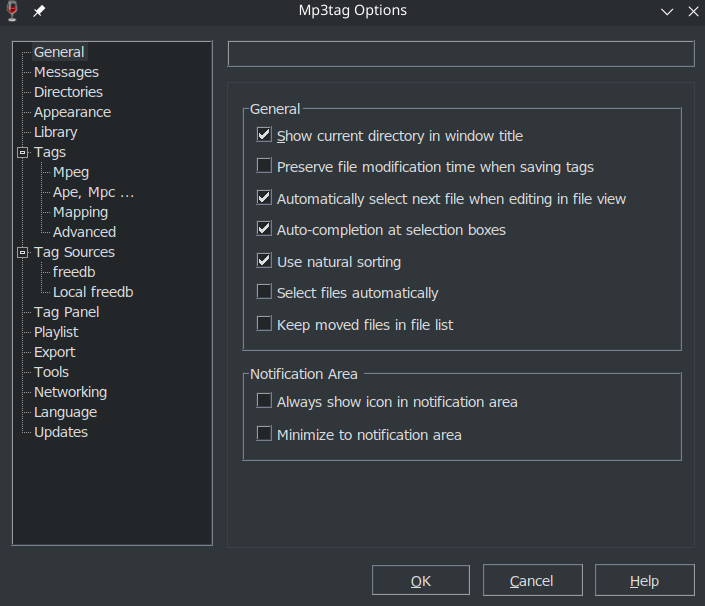
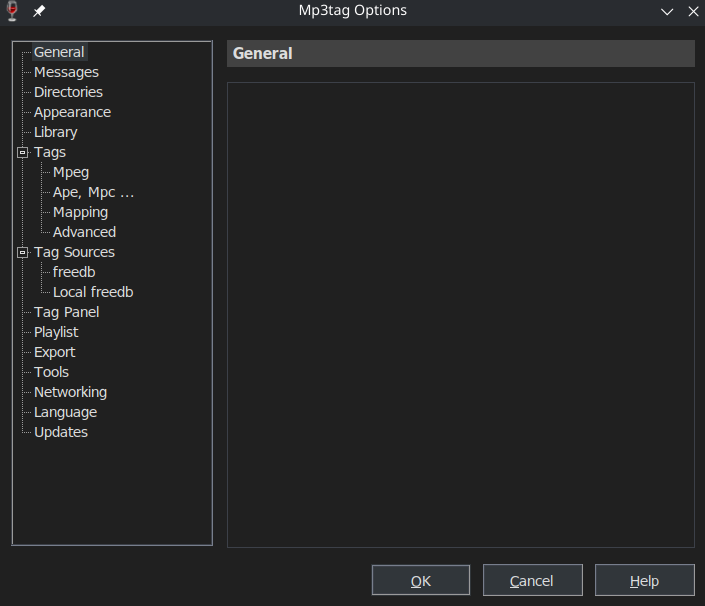
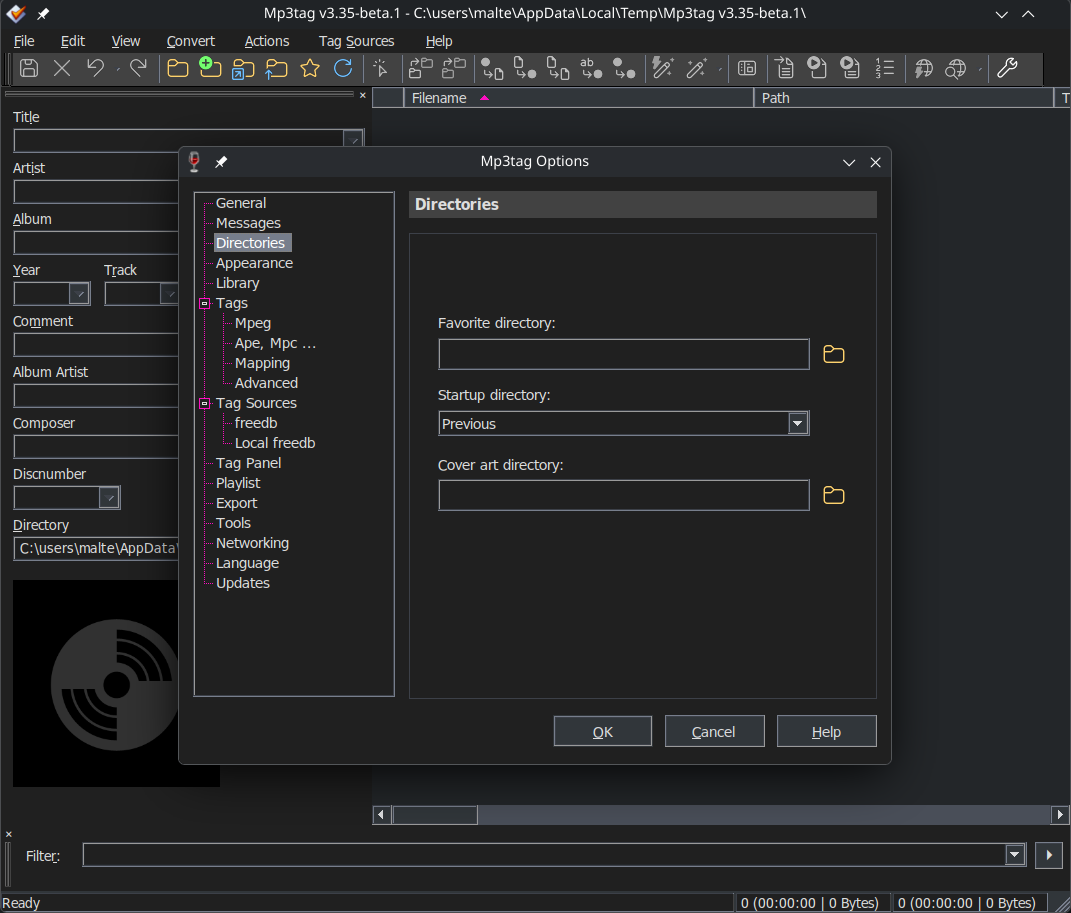
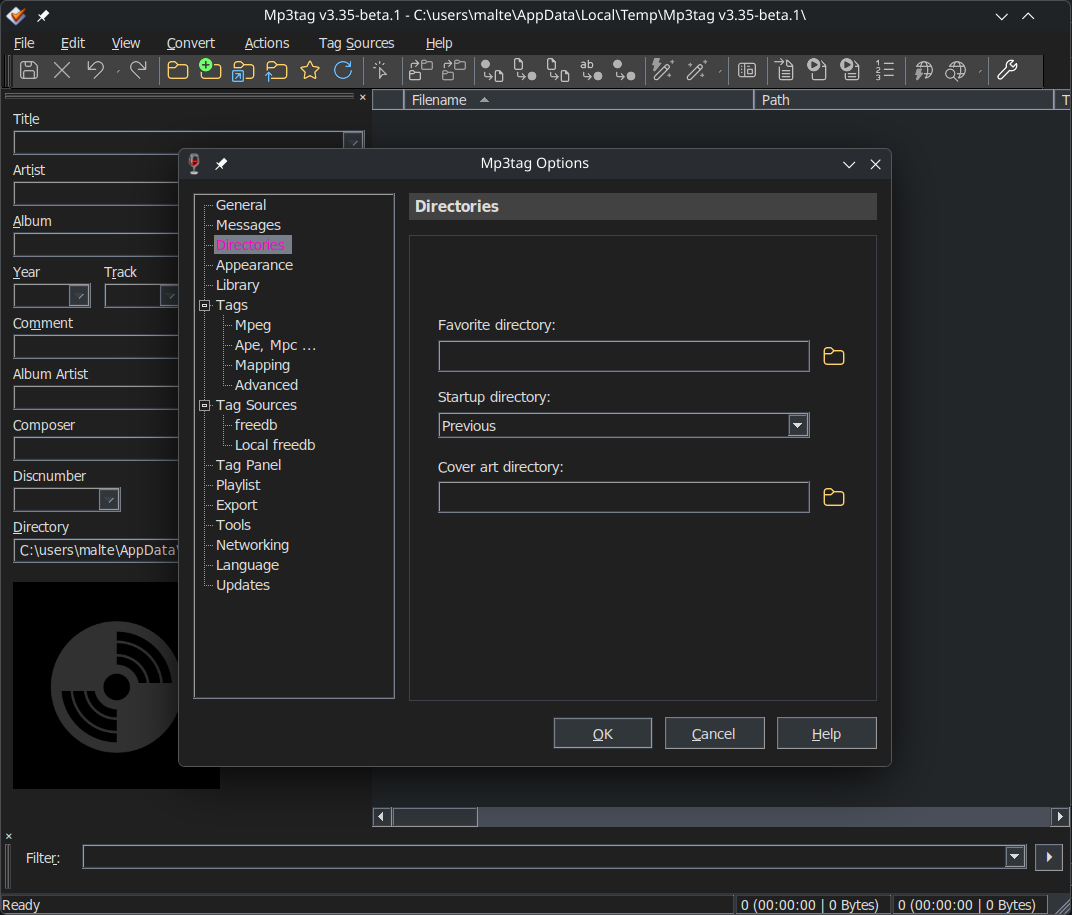
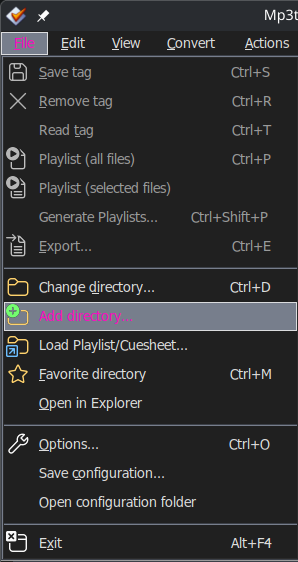
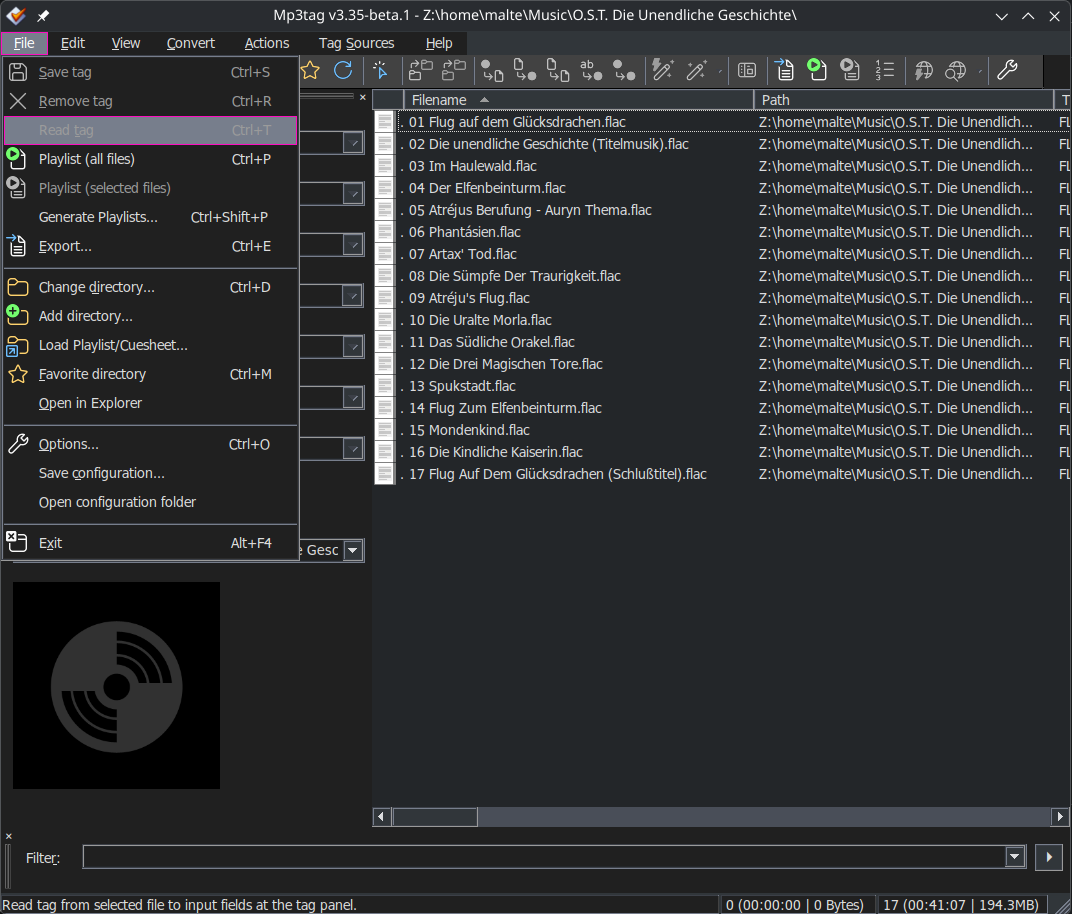
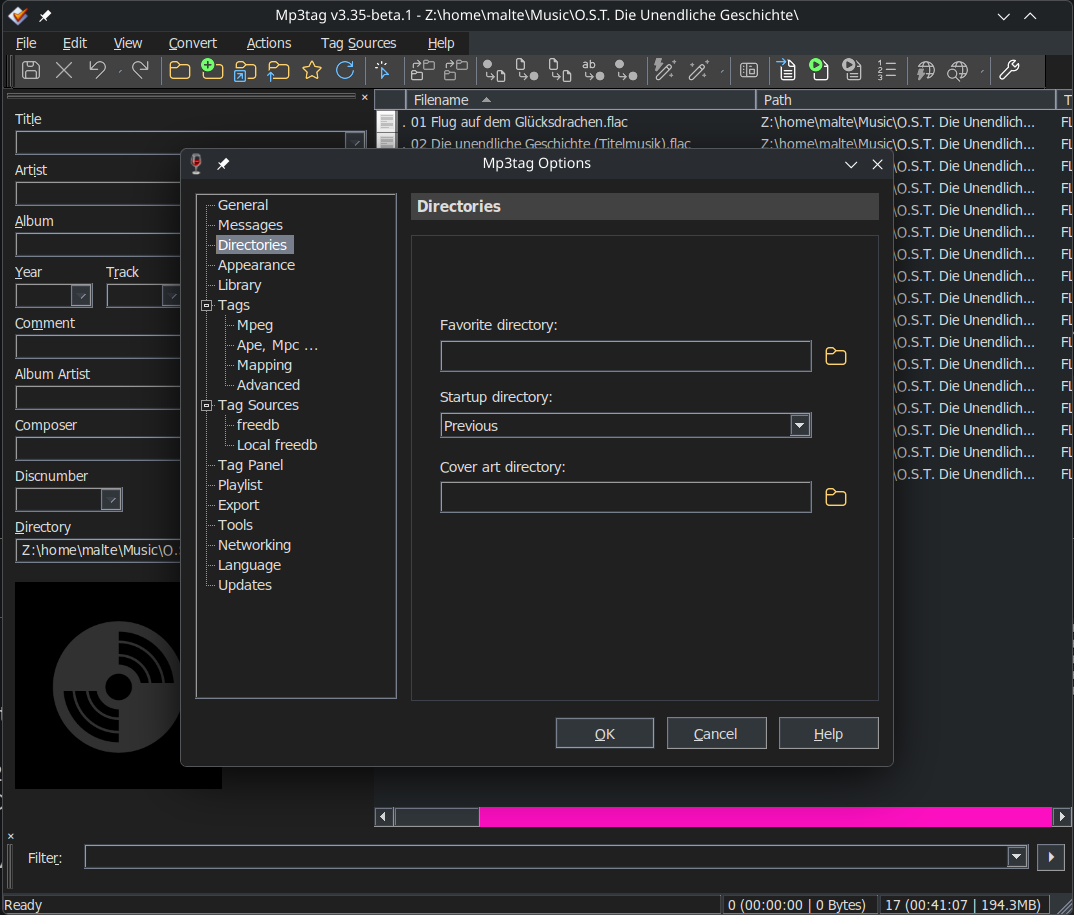
While this does work, I recommend to additionally set: File → Options → Appearance → Color Mode to Default or Light
within Mp3tag. Otherwise a good portion of the Options menu may be invisible.
Default only works if you have set WinRT theme to Light in winecfg for the wine prefix you are using for Mp3tag:
My recommendation is to set No Theme and Light in winecfg and then to set Default in Mp3tag. That way you can use the same Mp3tag config on a Windows PC with Dark Mode enabled and Mp3tag ought to respect that, which allows using the same Mp3tag instance with Dark Mode on Windows as well as Linux.
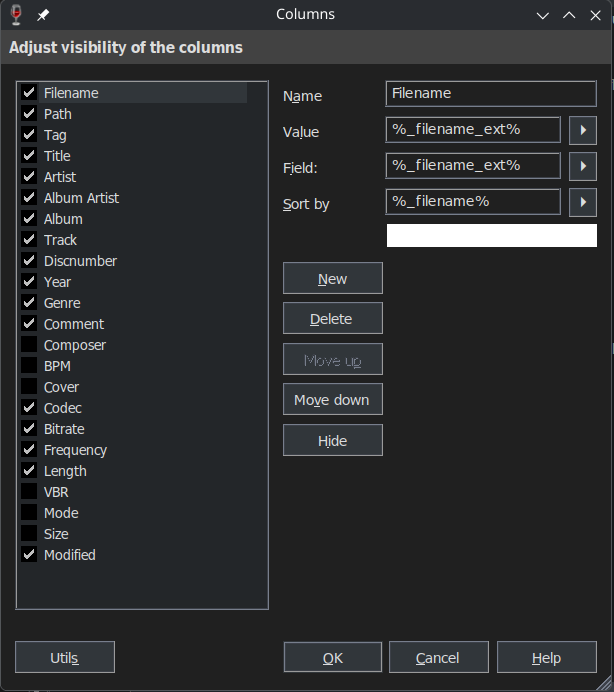
is responsible for the text color/brightness in the tag column headers?
I personally find black on dark gray quite hard to read and would like them to be the same color as the text in the tag panel and the values of the columns.
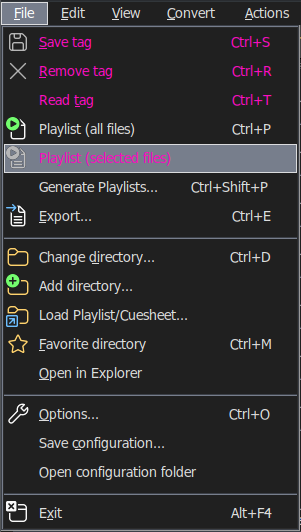
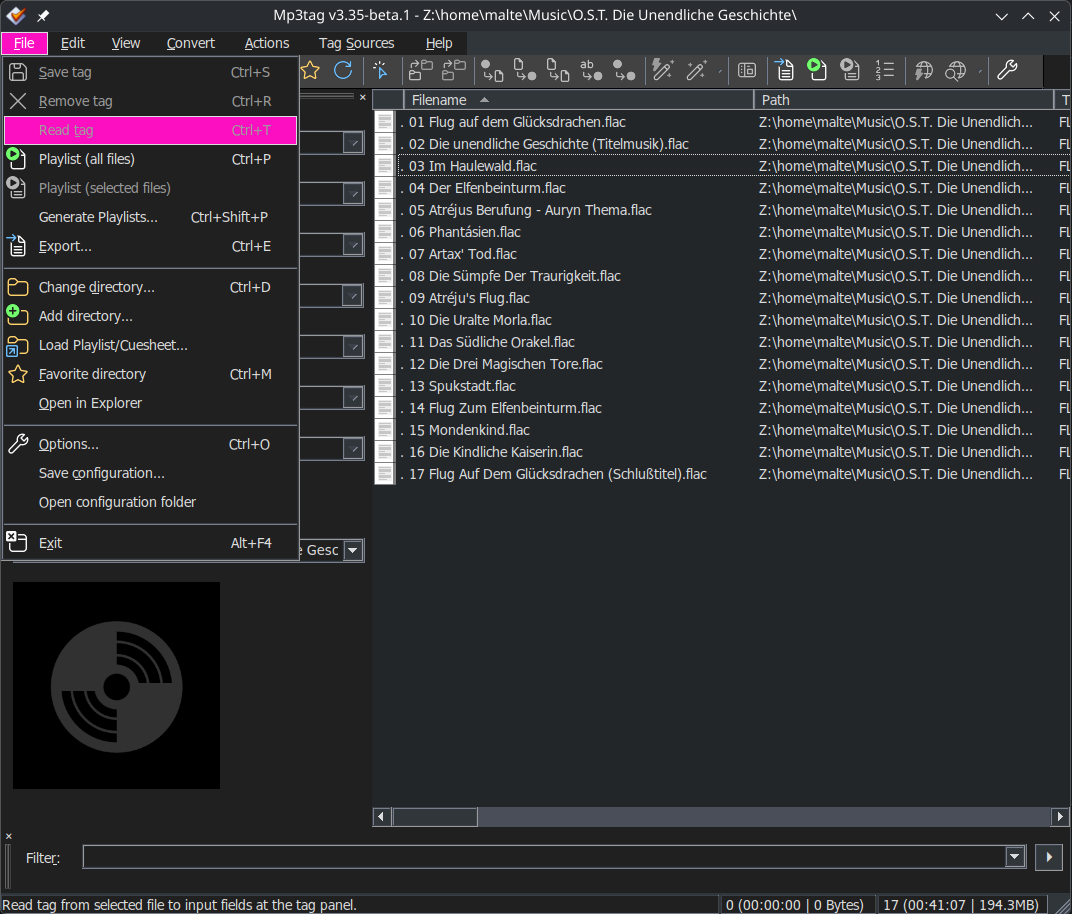
The remaining issue of many menu entries not being visible while Mp3tag is set to Dark can be circumvented by temporarily setting it to Light, so it's perfectly usable for me.
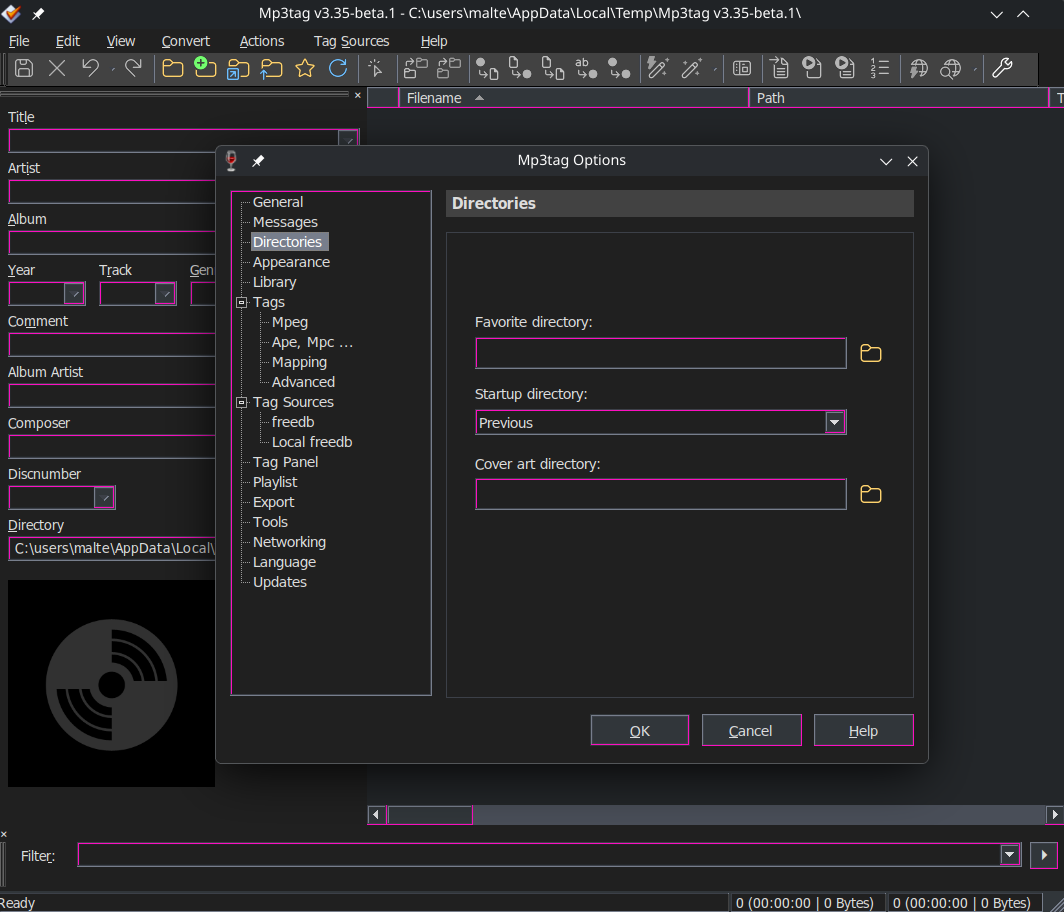
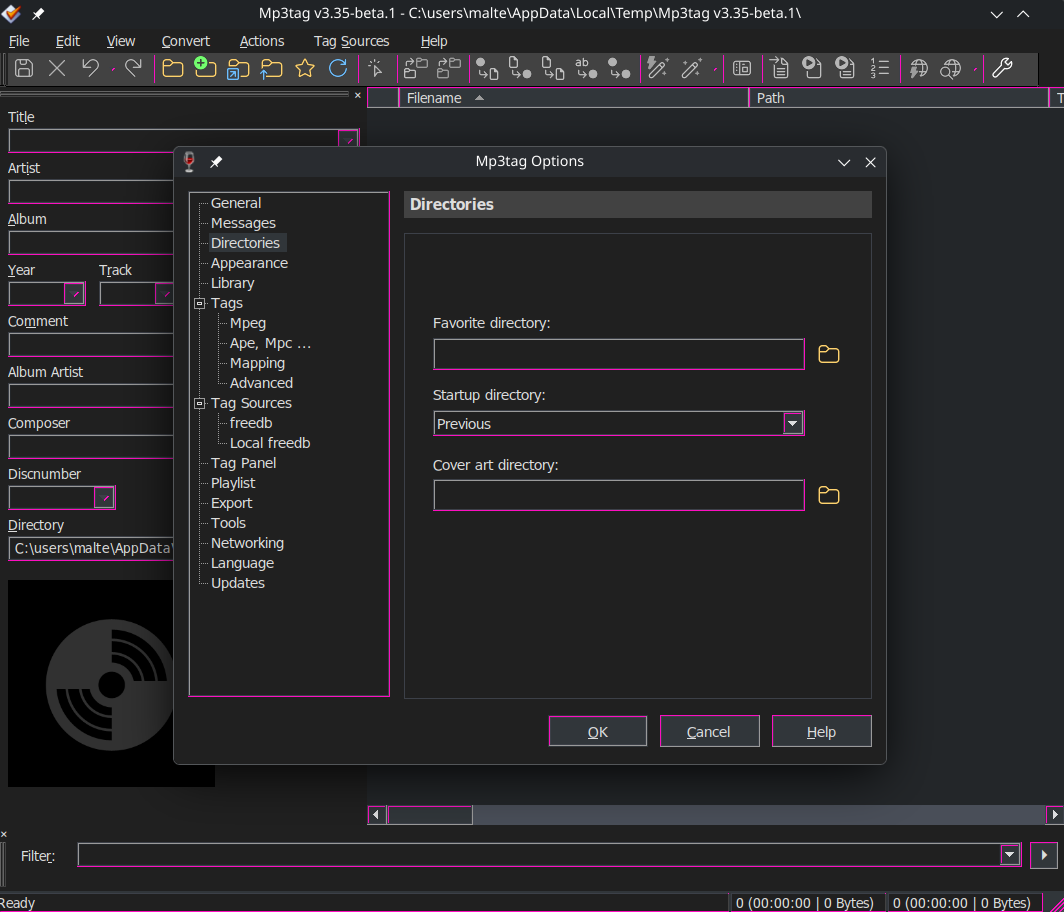
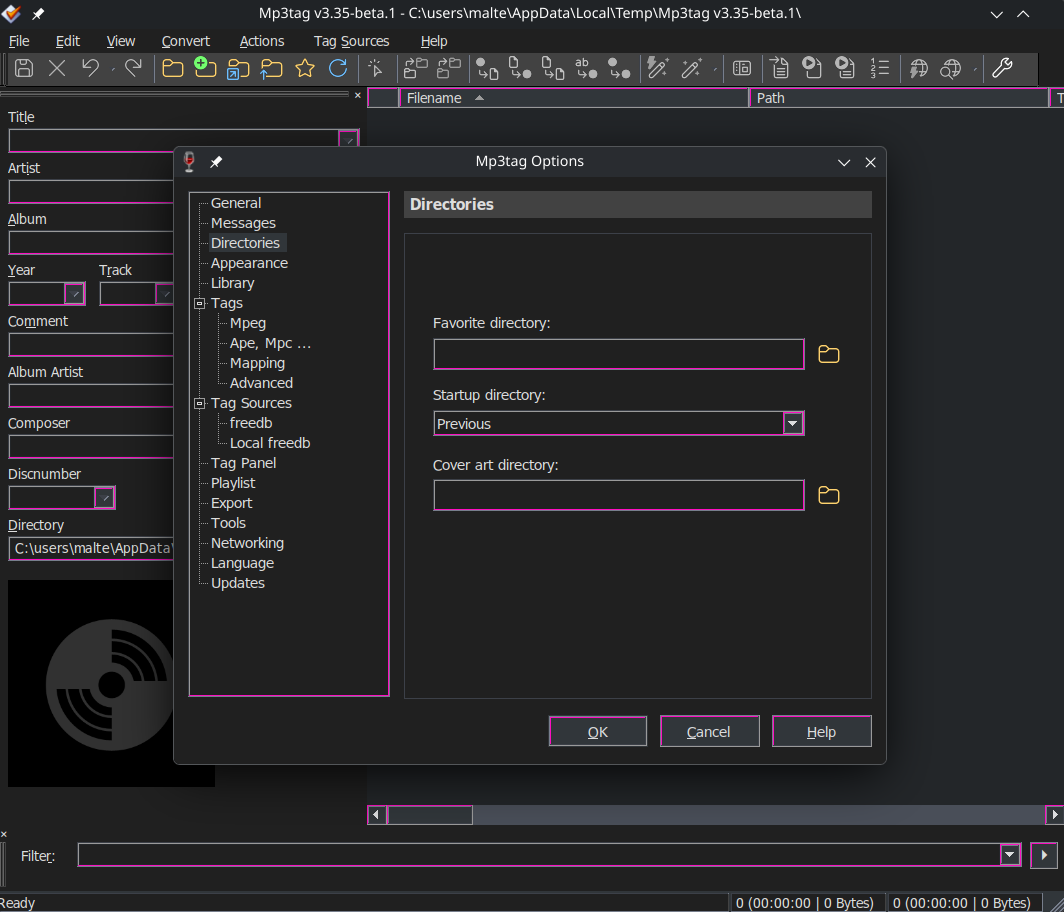
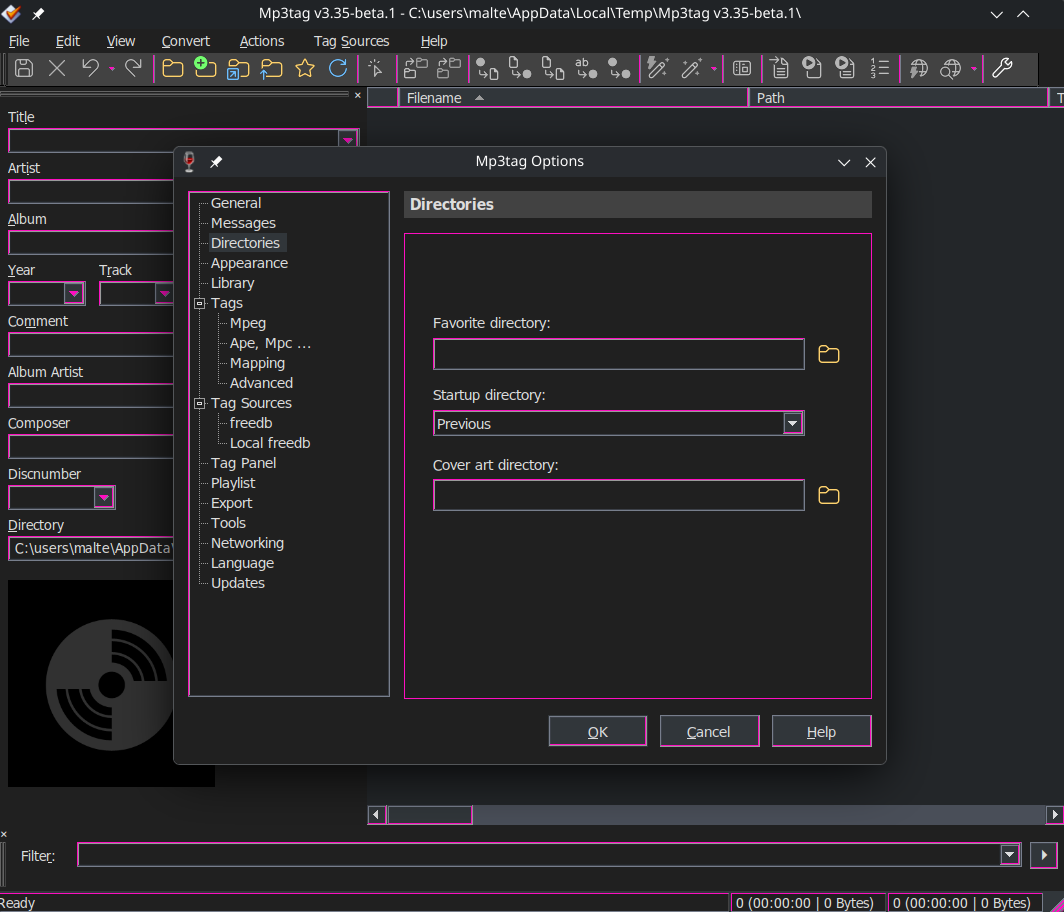
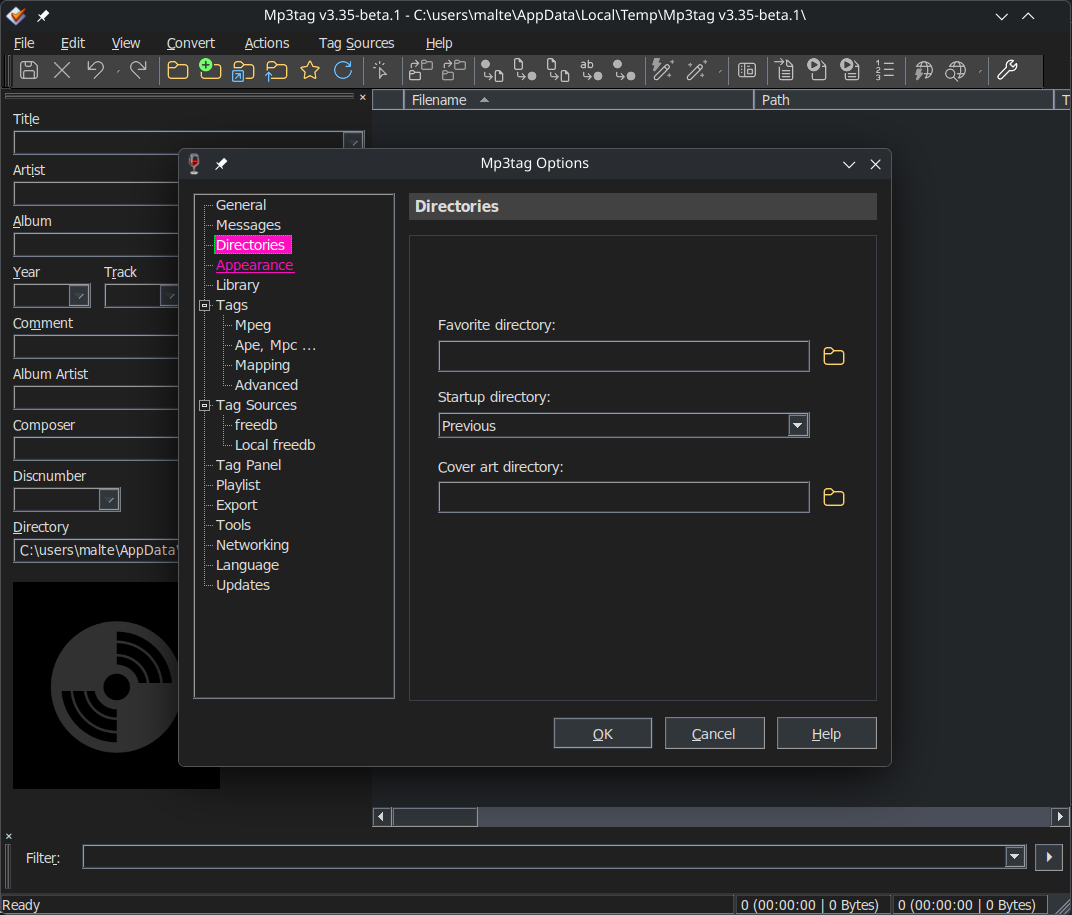
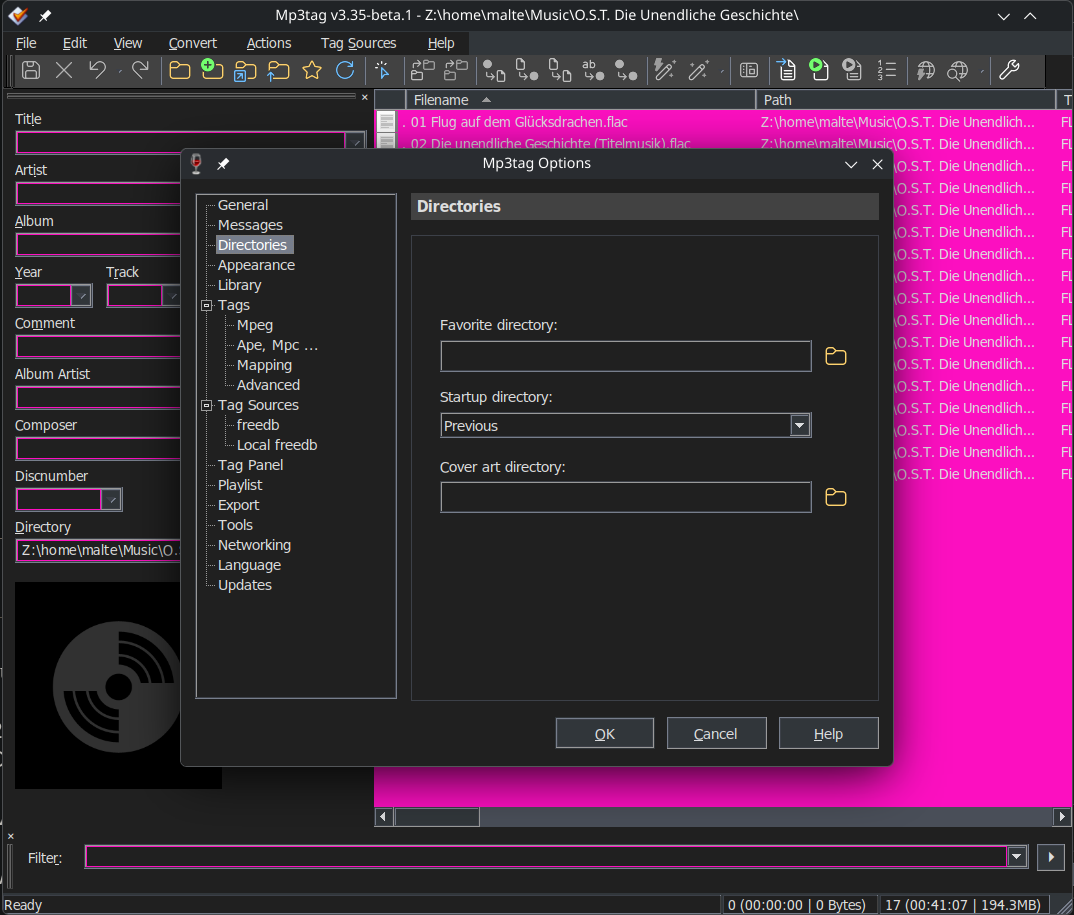
I've tried to see if I can adjust the registry edit to make those visible in Dark mode by changing them to bright pink 1 by 1 and noting what changes (if anything).
The only values I found to make a difference in Mp3tag are:
While the invisible menu entries cannot be influenced this way, this list should give users a good starting point if they do want to tweak the parts of the dark mode that are currently tweakable.
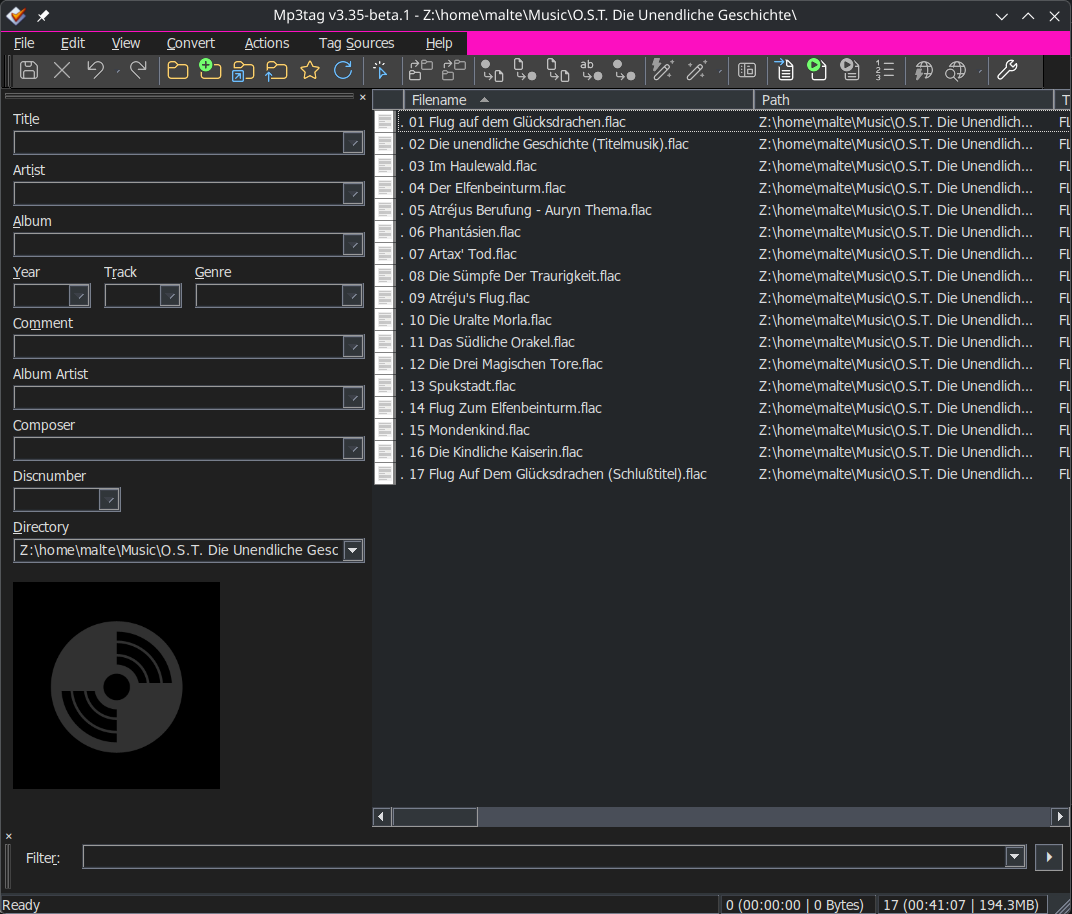
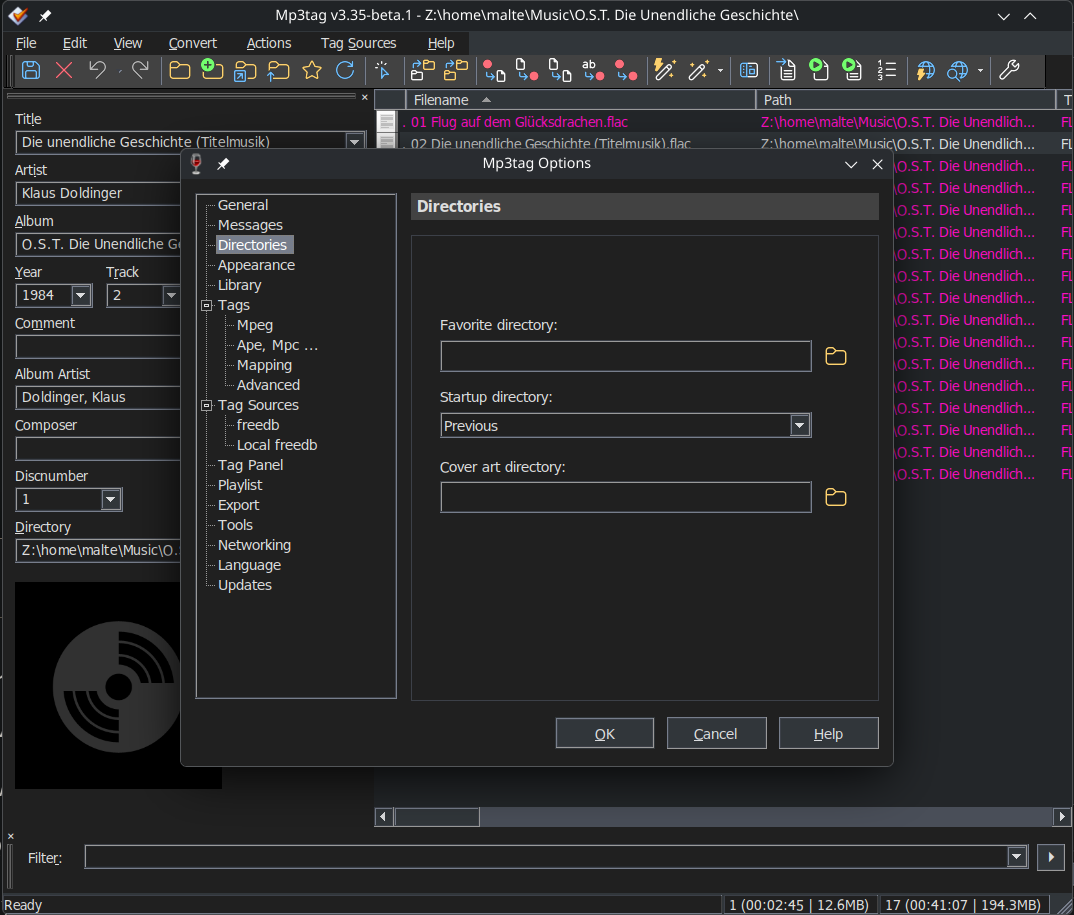
At the very least I recommend setting: "Menu"="49 54 58" to "Menu"="32 32 32"
to change this:
to match:
On another note:
Is there a way to disable or at least adjust the display of the program preview icon?
Whenever I open Mp3tag, it's displayed like this:
I find the . distracting and would prefer not to see the field at all.
I have yet to experience invisible options. I think these can be avoided by changing the Desktop Integration tab via winecfg before running regedit and leaving the Mp3tag Appearance settings as the defaults.
The latest Mp3tag beta has also fixed the column header colour issue for me as well.
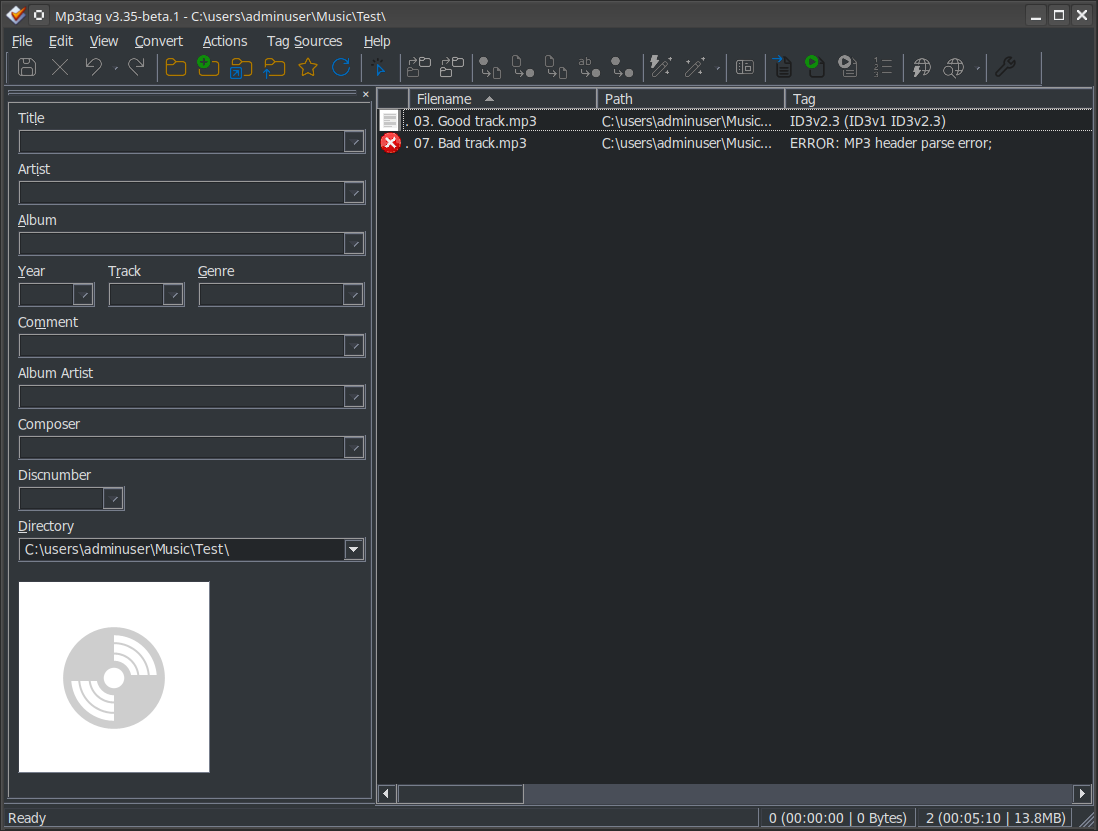
The leftmost column is useful for identifying MP3 files with errors. Also, the Tag column provides basic information about any errors.
Due to the icon being displayed incorrectly, I previously assumed that the error checking feature did not work on Linux. However, it actually does work, as you can see below. (The bad track in the screenshot is an MP3 file deliberately corrupted by me for testing purposes.)
Even though an MP3 file with an error is a rare occurrence in my experience, I appreciate Mp3tag warning me so that I can choose to either fix or ignore the error. Therefore, I would disagree with removing the leftmost column or hiding it.
The crux of the problem is that Linux either cannot access or interpret whatever the Windows icon is for a normal Mp3 file. So, it always substitutes a white text icon which is unfortunate - especially for Dark Mode Linux users. Why the 'error' icon displays correctly but the 'normal' MP3 icon does not is an issue that Mr Florian may wish to consider.
That's because your Mp3tag is set to Light (or Default and Wine is set to Light). I can tell by the muted colors in the tool bar and the white cover placeholder in your screenshot. Set Mp3tag to Dark internally or change the Wine setting to Dark and you'll notice the invisible menus.
Good point, removing it would be detrimental. I still wish it wouldn't reset visually to always display a . beside the icon.
I haven't tried it yet but perhaps setting a default program for the file type (.mp3/.flac) would display the icon of that program instead of the default white text.