Differences on image file extension for cover art

I'll take that into consideration. Seriously.

On the same subject:
Does anyone have experience using .heif and .heic formats in Mp3Tag? From the wiki, they should be supported on modern iOS systems.

But since I'm running a Win10 machine, Microsoft "kindly recommends" I buy a plugin for them whenever I try to open a cover in those formats. And I'm not having any of it.

I had exactly one request to implement support for those, it's not widely used yet and not supported with Mp3tag at the moment.

This has always confused me, but to view the HEIC format this works: HEVC Video Extensions from Device Manufacturer - Microsoft Apps

No, not in Mp3tag. I think, some iPhones take pictures in this format.

IrfanView - a popular free picture viewer - write in its FAQ:
(I don't share the links by purpose, as I can't say anything about the mentioned sources...)

I have been using iOS devices and iTunes since the beginning. The jpg format works perfectly fine.

"Add-on not compatible with your system." :frowning:

The HEIC Codec does allow me to open HEIC\HEIF images in the default viewer. In Mp3Tag I get this:

imagem

which is the same result as without the codec installed.

So no luck regarding those 2 formats (for now). Thank you all for your input.

Oh, and an update regarding the other formats:

I've gotten up to 24 formats; however, the (vast) majority uses the same compression - JPEG -, so despite having different extensions, the image data is virtually identical between them. When I get the time to properly compare and validate them, most formats will be cut from the final list.

JPEG scales from excellent quality down to rubbish. For good fidelity when viewing small images on screen, chroma subsampling must be disabled. Else colorful elements, mainly red but also saturated blue will be smeared, which is a common complaint about JPEG. Subsampling will also lead to high generation loss when the image is repeatedly saved, which sometimes can't be avoided. Even if it already has smeared reds, you should not use subsampling to not reduce quality further.

You might only notice a quality degradation on artificial images containing smooth gradients and no noise. Such images should be saved in PNG format. Sometimes dithering noise can be added. For example, look at the artwork for Tony Carey's "Christmas Hymns".

The compression ratio depends a great deal on how much detail there is in the picture. Cover artwork often has a lot of detail crammed into a small space. Scanned artwork may contain remains of the halftone pattern used in printing to simulate intermediate colors or noise, which cannot be compressed without loss.

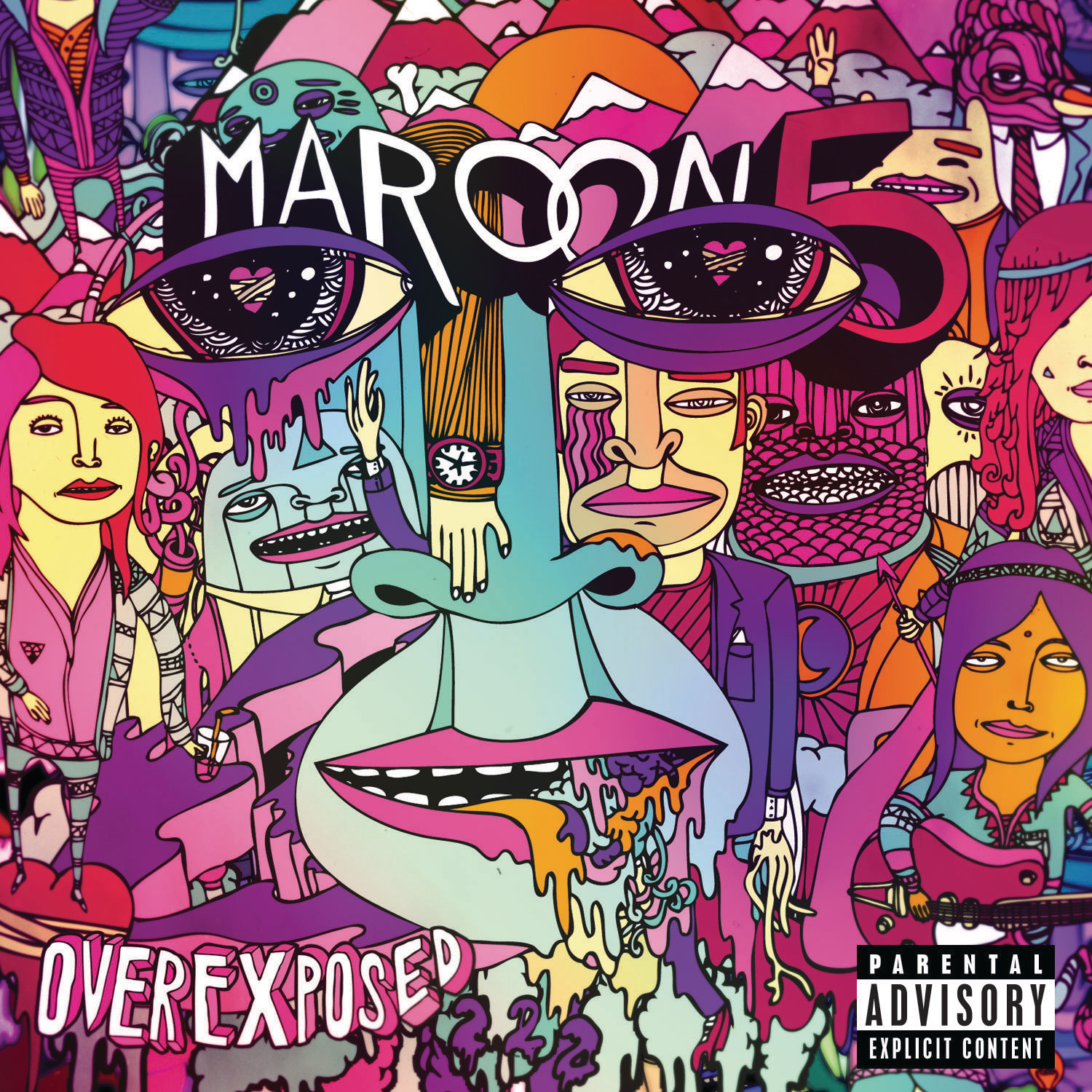
Take, for example, the artwork of Maroon 5 - "Overexposed". It contains many transitions between highly saturated segments. At high resolutions such image might have a higher proportion of blocks of a similar color and would compress better. But around at a width of 1000px, almost every block contains a sharp transition and needs a lot of data to represent it accurately.

An image such as Alicia Keys - "Girl on Fire" can have a high compression. Most of it is in greyscale and contains low level of noise.

When you download artwork from the Web, it is usually already transcoded from a moderately compressed format. Everything on the Web passes servers that do transcoding. Once the details have been discarded by the encoder, the image will save to a smaller size than a high quality copy, particularly if the encoding blocks haven't shifted because no cropping or resizing has been done.

You can obtain good quality artwork using the iTunes Artwork Finder, which can access the original quality of releases submitted to mainstream digital distributors. Notice that the files can be quite small even if they come at 100 quality, and show some artifacts at high zoom level.

Fanart TV have settled on 1000*1000 px size, which I also use in my collection. At good quality the images are 600 to 1024 kB. They take 2.86 MB uncompressed in memory. A bigger image can be included with the music in a way that doesn't cause media players to display it automatically.

Linear JPEG takes the least amount of processor to decode. Progressive JPEG and PNG are about twice as slow. Other formats are several tiles slower. JXL can have variable complexity. WebP in lossy mode always has chroma subsampling(!). JPEG-2000 and JPEG with arithmetic coding is an order of magnitude slower to decode. Video-derived formats AVIF and HEIF are extremely slow. This may be important for booklet scans that need to bigger to be readable.

Thank you @j7n for for that detailed exposition. It is helpful.

I had come across iTunes Artwork Finder on my research; but it doesn't directly suit my purposes. I added the link for others who may be interested.

Yes- those who invested time in organizing their music library will probably have learned of some method to have cover art image(s) displayed according to their particular use case.

Metaphorically speaking, what I'm trying to do is pick lemons from lemon trees to make lemonade, after learning there are several lemon trees to choose from (instead of just one) in a particular orchard.

How to make a lemonade that suits each user's taste, I leave that up to them- I just provide the lemons.

I used that method to get the high quality artwork in the Apple Music script.

I know of your work @AreDigg on Apple Music/iTunes scripts, but I'm intentionally avoiding looking at your .src files.

Working on a WS script is a learning experience for me (and has been for years - even before I joined the Mp3Tag community); and I don't want to spoil myself by peeking at a script with answers to the problems I'm finding along the development road. It's a lot more fun making mistakes and learning along the way.

By the way, from the previous post by @j7n, the artwork for "Maroon 5 - Overexposed" from iTunes Artwork Finder in high quality is this .jpg; and I can get this .png from the provisional list of file formats I'm working on.

As before, visually I can't find any difference between the images; it comes down to compression as to why one is ~900kb and the other ~3200kb.

The quality varies of course. Mainstream Universal Music covers seem to be often use quality level 92 at 1400 px. If you convert that to PNG or ask the server to convert, it will pointlessly inflate the size. You can clearly see JPG artifacts around edges of this image. PNG is a simple compression format that can't reproduce the same artifacts. It sees that as more noise that makes compression difficult. JPEG woks on 8x8 blocks, but PNG works row by row.

To take advantage of previous compression, the new algorithm must line up with the old. You might have heard of the AAC transcoding test, where the quality didn't degrade after a hundred passes: only because the latency was compensated for, and the frames lined up between passes. If you used a different encoder every time, it wouldn't work. If you take a compressed image and shift it by 3 pixels, the JPEG size will increase.

You can find great quality Vinyl scans on iTunes often: Search "Dolly Parton Rhinestone" or "Ronny Hohe Tannen",.or sharp red text and lipstick and dress: "Sceptre Pour Un Flirt". I usually save these as "artwork/front-hires.jpg", and reduce them for display to 1000 pixels. For maximum harm from chroma subsampling look at "Dire Straits On Every Street" (red on blue).

The Dodson's script supplies a URL parameter limit=25. It can be saved to disk and hacked with a much higher values. Then you can type the artist and see most of its discography. It also accepts the numerical ITunes Album ID instead of album name.

The PNG is saving the artifacts from the JPEG compression, so the source image at Apple is the JPEG version. There is a certain formula to convert to download the source image. The name of the original file is the part before the last slash in your PNG url. Which is an indicator of what the source format was.

I checked the .php file on Mr. Dodson's Github page, and found out what you meant. I'll try to incorporate an "uncompressed" option.

Even if the source comes back as, say, TIFF, it will often still be from JPEG. For example, "LeAnn Rimes Wonderful". The original format may or may not carry an ICC profile. For example, "Kelly Family We Got Love" (the preview is desaturated). If the image is heavily desaturated, one can make an educated guess that it needs Adobe RGB assigned (or less comonly one of those Apple P). Artwork is often country restricted, so it's worth trying multiple countries where the artist is based.

Quick update:

Out of the 24 formats tested, I got the following results:

Formats that produced valid cover images in Apple Music\iTunes:
.bmp, .cmyk, .cur, .dib, .dng, .emf, .eps, .gif, .heic, heif, .ico, .jpeg, .jpg, .png, .pdf, .psd, .rle, .svg, .tif, .tiff, .webp, .wmf, .xbm, .xcf.

  • JPEG compression:
    .bmp, .cmyk, .cur, .dib, .dng, .emf, .eps, .gif, .ico, .jpeg, .jpg, .pdf, .psd, .rle, .svg, .tif, .tiff, .wmf, .xbm, .xcf

  • non-JPEG compression:
    .png, .webp

  • unsupported by Mp3Tag:
    .heic, .heif

Since there is nothing to gain by adding more than one format in JPEG compression, the next selection criteria was popularity/player compatibility; and .jpg came out on top.

So, the final list (that I'll be working with) has .jpg, .png, and .webp.
And I think these formats will cover most of the intended use cases where cover art compression is needed.

I won't be marking any one reply as "the solution"; all posters contributed to get to this result directly and/or indirectly, and the "personal preference / specific requirement" aspect makes me realize that there is no one single answer to my original question.

Thank you all.