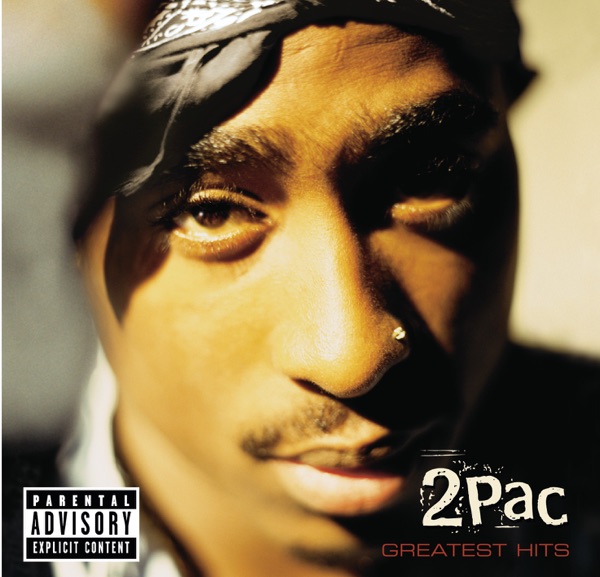
Differences on image file extension for cover art

Hello everyone,

I've read some topics on the subject of picture quality for cover art embedding, and while they provided some info, I couldn't find what I was looking for.

There are many image file extensions out there, both know and less known, and for cover art usually, the bigger the better (bigger dpi, bigger resolution, etc). This of course leads to a bigger file size.

Is there a difference in file formats that, for the (approximate) same values, can cause a major difference in file size?

As an example, the link for the iTunes cover art for 2Pac's Greatest Hits album is here (600 x 600px).
Through experimentation, I found out that I can change the resolution in the URL, and the resulting image is resized to that resolution (if available). I've also found that changing the file extension in the URL, the image is converted to that format. From the previous link, if I change the final ".jpg" to ".png" I get this link, with the resulting image in .png format, but looks the same. Downloading both pics to my hard drive and getting their properties in Windows, side by side, show pretty much the same values (600x577, 96 dpi, 24bit color); zooming them both to 5000x and comparing them doesn't show much difference regarding the pixel distribution.

However, the .jpg is ~81kb, and the .png is ~509kb.

There must be something I'm missing (compression?, some property not shown?) that justifies this size difference.

Can anyone give me some pointers, or know of a good tool to get more image details so I can find what makes one image so much bigger than the other, while having -apparently- the same quality?

Thanks in advance.

PNG is a losless compressed raster image format.
JPG is a lossy compressed raster image format.

If both files look the same then the question would be: has the png been converted from the jpg? Then, of course, the quality will not be better.

Both file formats are valid formats to embed in ID3 tags.

One of the biggest differences (beside the compression) is that PNG supports transparent backgrounds.
This may not be needed for Cover Art pictures.

You can find many more differences here in this article:

For Cover Art embedded in music files, it also dependes on how big you choose the resolution of our pictures. For a 200x200 thumbnail it doesn't matter that much if you choose a JPG or a PNG format.
But if you embedd a 5000x5000 pixel file, that will increase the (lossless compressed) PNG file size clearly noticeable.

Exactly. How to tell if a conversion really happened from one format to another? Something must have happened to justify the new file size; more than just changing the file extension.

Do you know of some tool for checking the converted .png and verify that there was indeed a conversion?

I don't understand.
As jpg is a different approach to save pixel information than the method for pngs is, of course there was a conversion.
As an experiment you could change only the file extension and if you open that modified file then probably the program will either refuse it altogether or produce an error that it is no valid format.

If you are interested in graphics formats, then create a plain pixel file e.g. bmp or tiff and convert it to jpg and also to png and compare them.
The bigger the original picture the more obvious the differences should be.
But a conversion from an already lossy format to a principally lossless format will never restore the lost information.

Exactly. IrfanView for example tells you:

image

That would be the same if you convert a mp3 music file (lossy) to a lossless FLAC.
The music content will not be "better" in FLAC then in the source mp3.

There is no "magic quality enhancement" in the convert process. Neither for music nor for picture files.

Different approach then:
Let's call the .jpg downloaded from the url "file A", and the .png downloaded from the url "file B".

File A: .jpg / 96 dpi / 24bit color / ~81kb
File B: .png / 96 dpi / 24 bit color / ~509kb

In plain MS Paint, I opened file A, made no changes, and saved as a .png (file C)

Adding the info of the new file to the list:

File A: .jpg / 96 dpi / 24 bit color / ~81kb
File B: .png / 96 dpi / 24 bit color / ~509kb
File C: .png / 96 dpi / 32 bit color / ~653kb

Files B and C are similar, but B has the color depth in 24bit and C in 32bit; naturally C is larger in size than B.

What I'm trying to understand is: if A and B both have the same properties (apparently), and side by side at a high zoom rate don't seem all that different to the naked eye (apparently), then what makes one be 6x bigger in size than the other.

Logic says there should be some value in B that would be different / bigger than the same value in A to justify the final bigger size. As @LyricsLover mentioned, compression is probably a factor, but again, to the naked eye I can't make out a sizeable difference at high zoom, and there is no numeric value in the file properties for compression.

I did find a CLI program called EXIFtool which does load (much) more info from A, B and C; I'll need to get familiar with it, and maybe I'll find a compression ratio or something in the files' info.

Ithink that most of your questions are answered in the text that @LyricsLover has already linked.

It does help.

But when comparing a ~80kb image with an ~500kb one at a high zoom level, I was expecting the quality difference to be something like this (this is edited to exemplify my point of view)


but instead I'm getting this

(this is also edited, but the left side came from file A and the right side from B.

I was expecting a compressed, small sized image to be blurred\pixelated\of lesser quality when compared with a lossless image, when viewed at high zoom. Especially so when the compressed image is many times smaller (in kb) than the lossless one.

But if I hadn't (purposefully) slightly offset both halves to make the division obvious, it would be hard to tell them apart.

I was also expecting a compressed image to have different dpi or color depth than the original (as did B and C), but A and B have those properties with identical values; then the compression algorithm for A must cut out (many) details to substantially trim down the final size, without sacrificing quality, but still maintaining dpi and color depth.

Then something else must be discarded; as to what exactly, I'll have to dig deeper into image formats to find out.

My end goal with this topic is this: if you had a music database that provided cover art in different formats (as iTunes apparently does), would you like them to be available as options in a WS script?

If so, which ones? What criteria would you use to say .gif is better than .bmp, or .svg is no different than .webp (for example)?

If you are talking about pictures for music files in general and pictures to be embedded into music files in particular, then only two formats are relevant to comply with the ID3 standards: PNG and JPG

The ID3 standard says:

Image format is the MIME type and subtype [MIME] for the image. In the event that the MIME media type name is omitted, "image/" will be implied. The "image/png" [PNG] or "image/jpeg" [JFIF] picture format should be used when interoperability is wanted.

My personal answer would be: Provide the biggest possible picture in PNG, if available.
If not available, provide the biggest possible JPG picture.
Every smaller resolution in PNG or JPG can be converted individually as needed.

I had not thought to consult the ID3 standard. This was really helpful.
I started this topic thinking that, since the only (apparent) difference between A and B was the file size, I could discard .png.

So, .jpg and .png both make the list. What about other formats?

I've already ruled out .jpeg because it's virtually the same as .jpg (and so would be redundant), and I'm trying to screen other formats based on their similarities (or lack thereof).

Or, just add all possible formats to a list, and let each person choose for themselves.
Thoughts?

AFAIK jpegs sometimes describe jpgs in progressive format - which som players cannot display.
For best compatibility I would stick to png and jpg.

I've changed 2Pac's album cover link to several image extensions and gotten 15 compatible hits so far.
I'm trying to put myself in Apple's shoes to understand the 'why' behind the support for so many formats.

But this exchange has been really helpful. Thank you @LyricsLover and @ohrenkino.

JPEG format is a five stage compression process where there are different options to how much image information you remove.

  1. Colorspace conversion
  2. Chroma subsampling
  3. 8x8 frequency domain transformation
  4. Quantization
  5. Huffman coding

At step 2 lets you decide the ratio of chroma data (color) vs luminance (intensity) and step 4 how much high frequency data is to be removed. Usually however the software does not let you decide the sub sampling (typical 4-2-2 or 4-2-0) and some do give you the choice of ratio of frequency quantisation (typically in a value from 0 to 100 or percent).

The reverse process does not need to know the parameters so it is not easy to tell how much it was compressed from the source. But it is a very efficient method even when only slightly applied.

JPG is only an abbreviation of JPEG. The format is exactly the same. Like for audio and video there is some overlap when the discussion is about image format and container format. JPEG are usually stored in JFIF, but it is possible to use TIFF, EXIF, JIF and others.

Because graphic designers and their software loves TIFF, covers nowadays are originally in some lossless compression format using CMYK colors using TIFF. But because print of covers are becoming rare I think that the entire process will be entirely in RGB. They are then distributed in other formats more suitable for screens, like JPG or PNG.

Also because many artists do their own distribution they may decide to do the covers by themselves.

When you download covers from Apple servers they are converted to the format/compression and size/transform you ask for from their original as received by the distributor (record company usually) on the server side.

I don’t think there is too much use in the discussion of which format you should use. It all depends on your use case. It is analogous to if you should use MP3, AAC, WAV, etc for your music.

I strongly agree. For example, if one of your players does not support PNG (and older car players may not), then much of the JPEG vs PNG discussion here is moot for your purposes. You can then focus on determining the image size and amount of JPEG compression that you find to be acceptable.

And, as @LyricsLover pointed out, overall file size can matter as well. Audio files with very large images may load more slowly than you would like when browsing from your car or smart phone. And those large files will consume more music storage space in your portable devices.

To me baseline JPEG files of 1000 x 1000 pixels look just fine and do not cause visible delays when browsing in my hardware players (car and Android phone).

Even if you don't use such a player yourself, you might want to loan or give a USB stick of your music to a friend , a relative, or a coworker. It's safe to assume that his or her player will support the baseline JPEG format.

Here are two different -but perfectly valid- opinions that illustrate my current conundrum. I'm not trying to determine what is\are the best format(s); that is more a matter of personal preference or particular need.

In terms of scripting workload, having a list of 2, 5, 10 or 15 formats is negligible.
But having a list of just 2 options might be considered too restrictive (but would still be better than just one); likewise, having a list of 15 options may become confusing.

That's why I'm studying up on image formats; to screen out the "redundant" ones.

It isn't so much about a preference for one format over another. It really boils down to what each user needs based on their choice of player(s). While some picture formats are "better" than others as far as lossless versus lossy goes, if the player can't use a particular format it really isn't better.

This is a great comparable to consider what a user may prefer (or need).

Baseline jpg offers the widest range of compatibility but is lossy. The lossless png format is probably the next closest and potentially offers better resolution.

Others formats may work in some players and media managers but are outside of the id3 spec. I would caution against offering too many other format choices.

Just to weigh in my personal experience: I've decided to settle on high resolution (1400px+) high quality (90+) baseline jpgs because these are the sweet spot of size, performance and compatibility for me.
I can't distinguish them from the original PNG unless I zoom in until I see individual pixels and they load much quicker, take up less space and are supported by literally every piece of software I used over the last 2 decades.