Mp3tag scripts to transfer all Copyright data from iTunes and other tagging programs, from MP4 files to MP3 files

Mp3tag scripts to transfer all Copyright data from iTunes and other tagging programs, from MP4 files to MP3 files.

Context and Objectives

This tutorial will allow us to copy our iTunes Copyright tags and those of recent and older programs from MP4 (m4a) to MP3.

A huge thank you to @LyricsLover for their support on this project and for adapting my scripts and creating new ones. I also want to thank @ohrenkino, who provided invaluable support to LyricsLover. Their work is remarkable: a true programming masterpiece!

An album with Copyright tags can have the same data, this data can differ from one tag to another, it can be on the same line of data, and some tagging programs offer the possibility of creating the copyright tag on multiple lines of data…

The scripts provided in this tutorial can handle all these possibilities.

For transferring Copyright data from MP3 and MP4 files

You will have a single command, "Export MP4 Copyright Tags," including three reading and writing modes, well-suited to both new and older Copyright tag programs, allowing for highly efficient data transfer to your MP3 files.

Two standard commands, "Actions" or "Text File - Tag," will be available to copy Copyright tag data into your MP3 files.

A final special command has been included (two "Actions" commands) to transfer Copyright tag data written on multiple lines.

The first "Actions" command includes programming perfectly suited to tag programs that contain only one line of data for Copyright tags.

-=-=-=-=-=-=-=-=-=-=-=-=-=-=-=-=-=-=-=-=-=-=-=-=-=-=-=-=-=-=-=-=-=

I offer "advanced users" the option to download the ZIP file from this page. This file includes a PDF with a brief summary of how the scripts work, as well as icons for those who might be interested.

You can then place the Actions and Export files directly into the Mp3tag directory and copy/paste the formulas from Text file –Tag, without having to follow all the steps in this tutorial. This method is simple and very quick.

↓ Download the ZIP file
ZIP folders Scripts and PDF - Mp3tag_Copyright MP4_MP3.zip (1.4 MB)

-=-=-=-=-=-=-=-=-=-=-=-=-=-=-=-=-=-=-=-=-=-=-=-=-=-=-=-=-=-=-=-=-=

This tutorial is divided into 5 sections, covering script programming for copying Copyright tags from MP4 to MP3.

Each section contains the names of the commands to select, as well as the data, formulas, and images illustrating each programming step. You will also occasionally find additional information about this feature.

01- Filter:

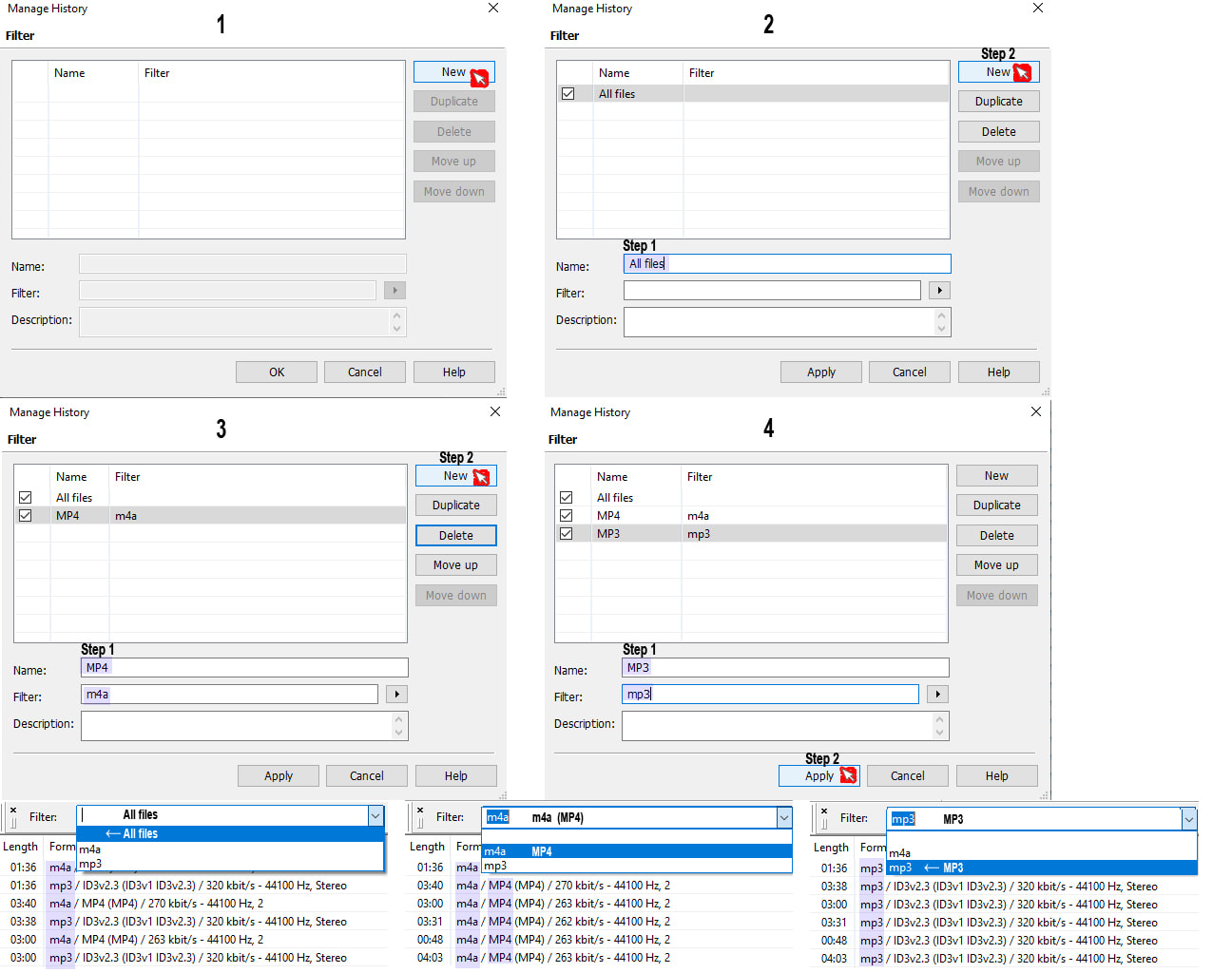
You will be able to learn how to move the Filter bar: you can program it to display either all of your files, or only a specific format (MP3 or MP4).

02- Programming in EXPORT: For MP4 files:

3 formulas for reading Copyright tags from MP4 files, depending on the programming you performed in the MPEG section, for the two possible MP3 programming methods, and handling the ℗ (P) and © (C) characters.

03- Programming a Action command to copy MP4 data to MP3 files containing the same data.

04- Programming a formula in Text File – Tag, for MP3 files

This formula inserts the same data, different data, and data across multiple lines of Copyright tags into your MP3 files.

05- Special programming of two Action commands for managing multi-line Copyright tags.
01- Filter :

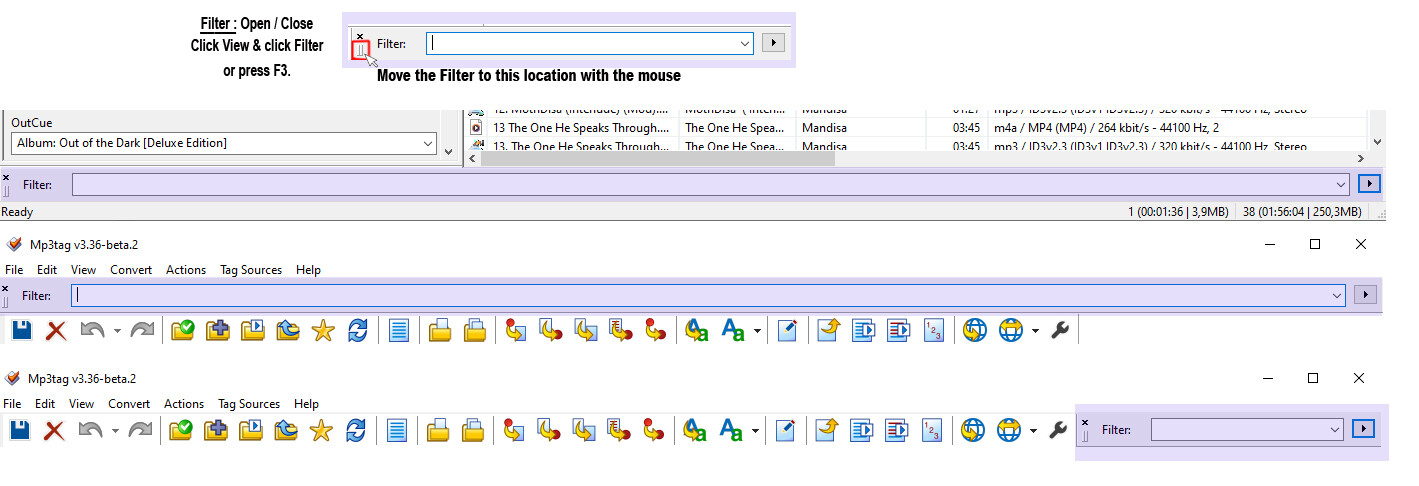
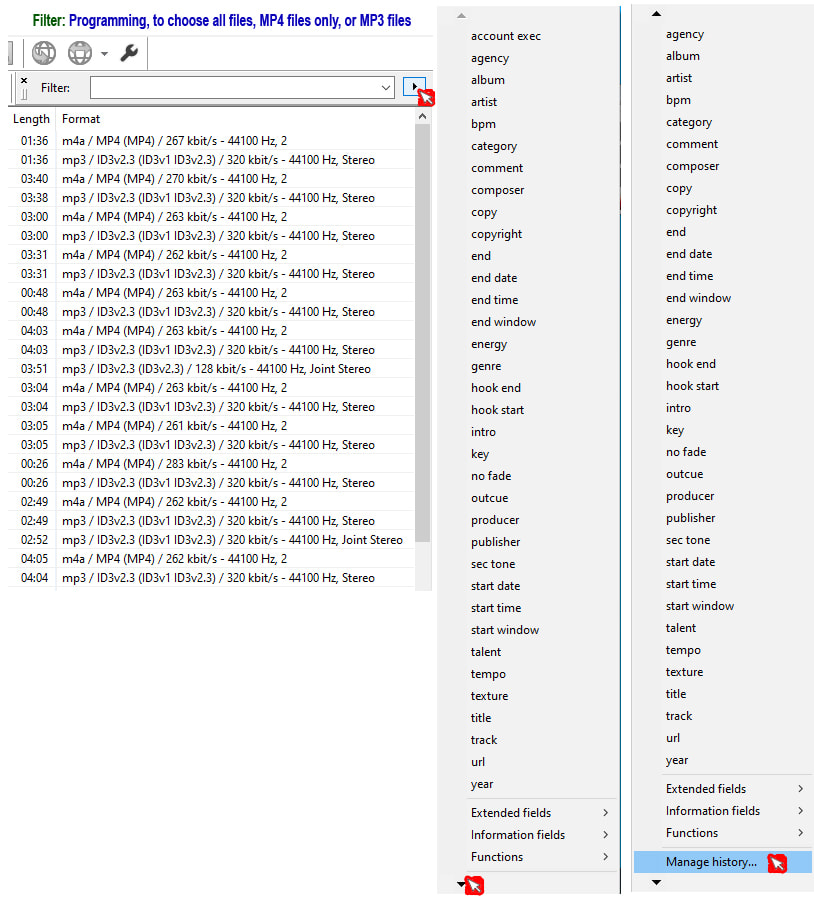
The Mp3tag "Filter" Bar is usually located at the bottom of the screen, but you can move it upwards using your mouse.

If it's hidden, activate it by going to the View > Filter menu, or by pressing the F3 key on your keyboard.

You can customize the "Filter" bar to display either all your files or only a specific format (MP3 or MP4).

To help you, this section includes explanatory images illustrating how to move the "Filter" Bar and configure your selection criteria, as mentioned above.

02- Programming in EXPORT: For MP4 files:

To read and edit all Copyright tags including multi-line, in MP4 audio files (.m4a), simply use the Export function of Mp3tag.

Remember: When copying Copyright tags using the Export section, only MP4 (m4a) files should be selected.

You can program the following 3 scripts:

Export_Copyright Mp4 to Mp3 (1-3) Version © (P)
Export_Copyright Mp4 to Mp3 (2-3) Version © ℗
Export_Copyright Mp4 to Mp3 (3-3) Version (C) (P)

-=-=-=-=-=-=-=-=-=-=-=-=-=-=-=-=-=-=-=-=-=-=-=-=-=-=-=-=-=-=-=-=-=

First script to program: (1-3)

Export_Copyright Mp4 to Mp3 (1-3) Version © (P)

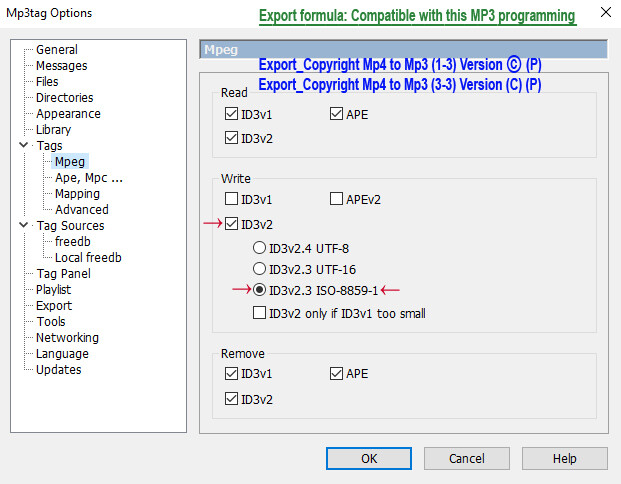
Press Ctrl + O to open the Options window, then click on the Tags > MPEG section.

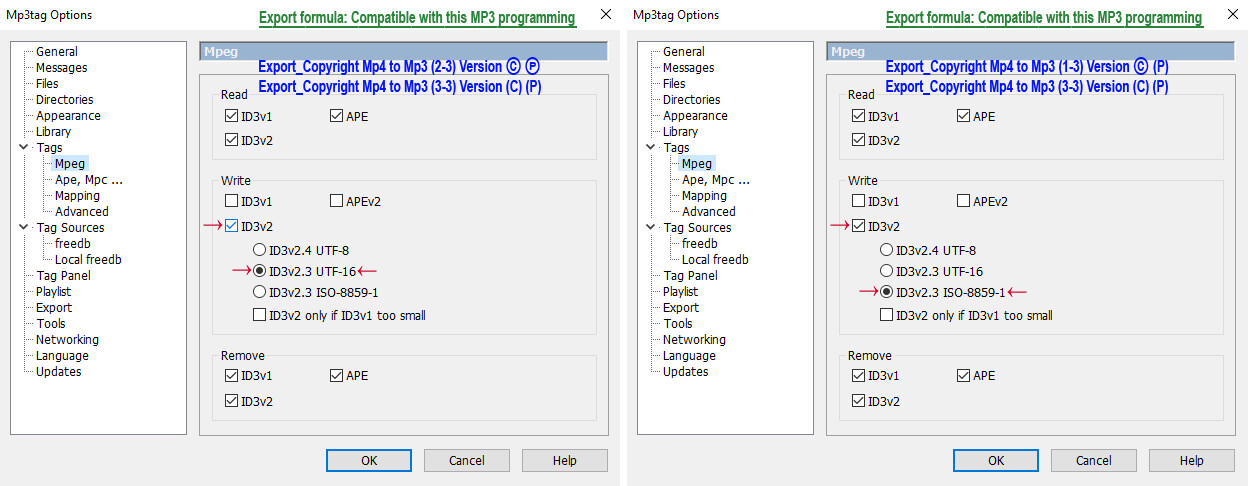
The MP3 programming in the MPEG section of the MP3tag program should be as follows:

Write – √ ID3v2
• ID3v2.3 ISO-8859-1

This MP3 file processing method handles the © symbol perfectly, but does not support the ℗ symbol, which it replaces with a question mark (?).

Thanks to this script, whenever the ℗ symbol is detected in your Copyright tags, it will be automatically replaced with (P).


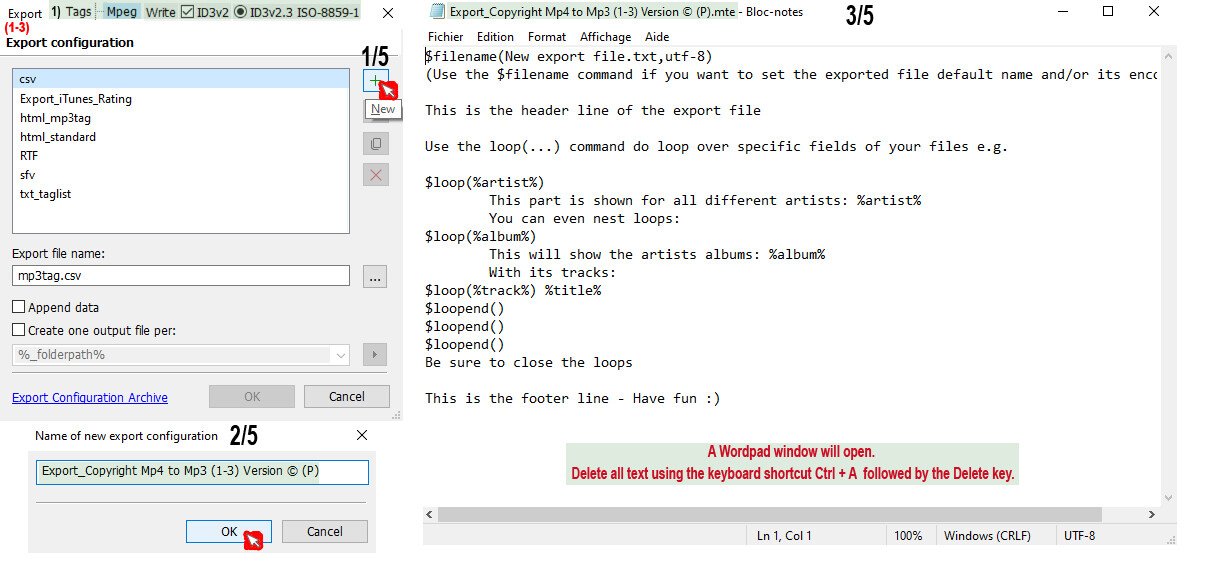
Click the Export icon (CTRL+E)

Export
Export configuration
Click the + (green) icon on the right


Name of new export configuration
Export_Copyright Mp4 to Mp3 (1-3) Version © (P)

Click OK

A Wordpad window will open. Delete all the text using the keyboard shortcut Ctrl + A followed by the Delete key.

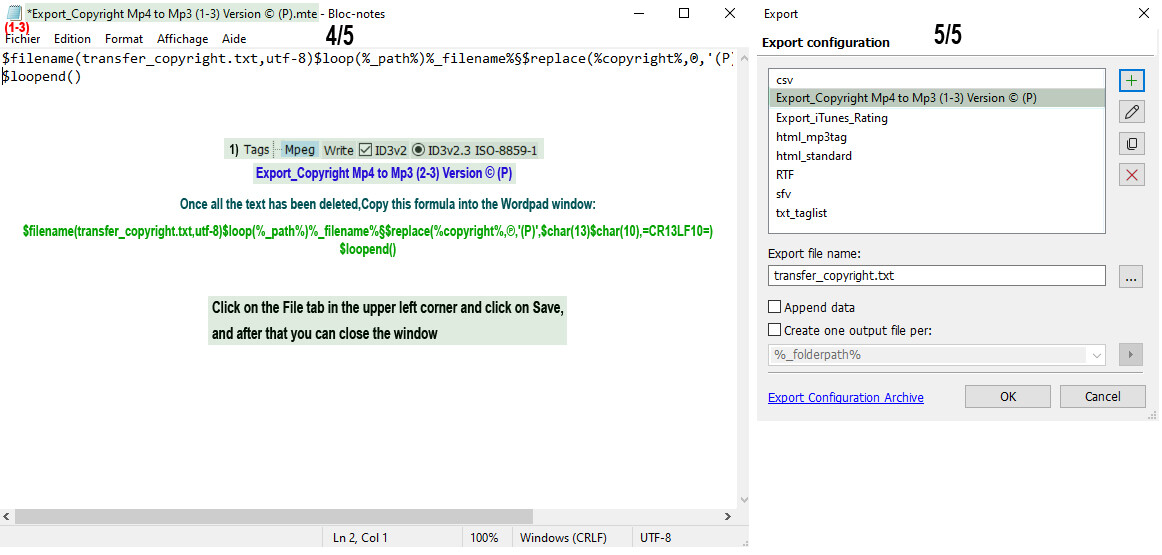
Copy this formula into the Wordpad window:

$filename(transfer_copyright.txt,utf-8)$loop(%_path%)%_filename%§$replace(%copyright%,℗,'(P)',$char(13)$char(10),=CR13LF10=)
$loopend()


Click the File tab in the upper left corner and click Save. You can then close the window.

To help you, you will find in this section explanatory images illustrating how to program.


For those like me who are wondering why this MPEG MP3 programming doesn't handle the special character ℗

LyricsLover has done some research on this topic:

This is the explanation for the different handling of ℗ and ©:

The behavior is caused by the limitations of the ISO-8859-1 (Latin-1) character set.

The key difference is that © and ℗ are not part of the same character repertoire.

© (Copyright Sign) has the Unicode code point U+00A9 and is included in ISO-8859-1 (at byte value 0xA9). Therefore, it can be stored without any problem.
℗ (Sound Recording Copyright / Phonogram Copyright) has the Unicode code point U+2117. This character is not part of ISO-8859-1.

-=-=-=-=-=-=-=-=-=-=-=-=-=-=-=-=-=-=-=-=-=-=-=-=-=-=-=-=-=-=-=-=-=

Second script to program: (2-3)

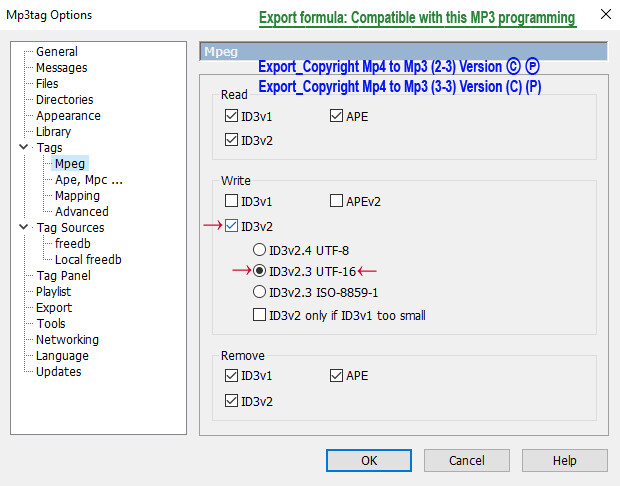
Export_Copyright Mp4 to Mp3 (2-3) Version © ℗

Press Ctrl + O to open the Options window, then click on the Tags > MPEG section.

The MP3 programming in the MPEG section of the MP3tag program should be as follows:

Mpeg
Write – √ ID3v2
• ID3v2.3 UTF-16

This MP3 programming mode handles the two special characters very well: © ℗


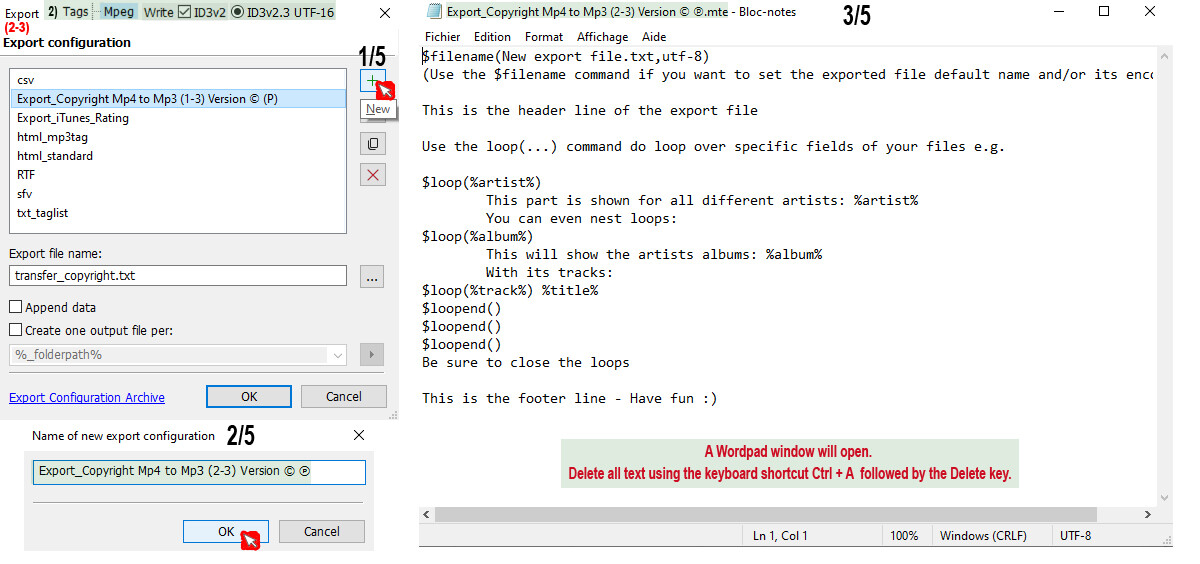
Click the Export icon (CTRL+E)

Export
Export configuration
Click the + (green) icon on the right (a second time)

Name of new export configuration
Export_Copyright Mp4 to Mp3 (2-3) Version © ℗

Click OK

A Wordpad window will open. Delete all the text using the keyboard shortcut Ctrl + A followed by the Delete key.

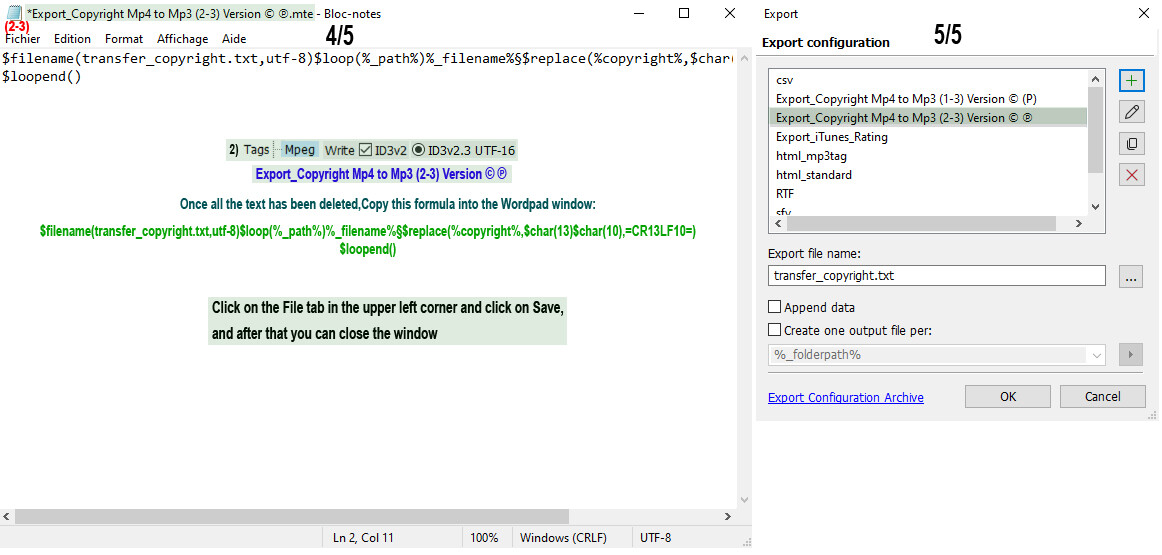
Copy this formula into the Wordpad window:

$filename(transfer_copyright.txt,utf-8)$loop(%_path%)%_filename%§$replace(%copyright%,$char(13)$char(10),=CR13LF10=)
$loopend()


Click the File tab in the upper left corner and click Save. You can then close the window.

To help you, you will find in this section explanatory images illustrating how to program.

-=-=-=-=-=-=-=-=-=-=-=-=-=-=-=-=-=-=-=-=-=-=-=-=-=-=-=-=-=-=-=-=-=

Third script to program: (3-3)

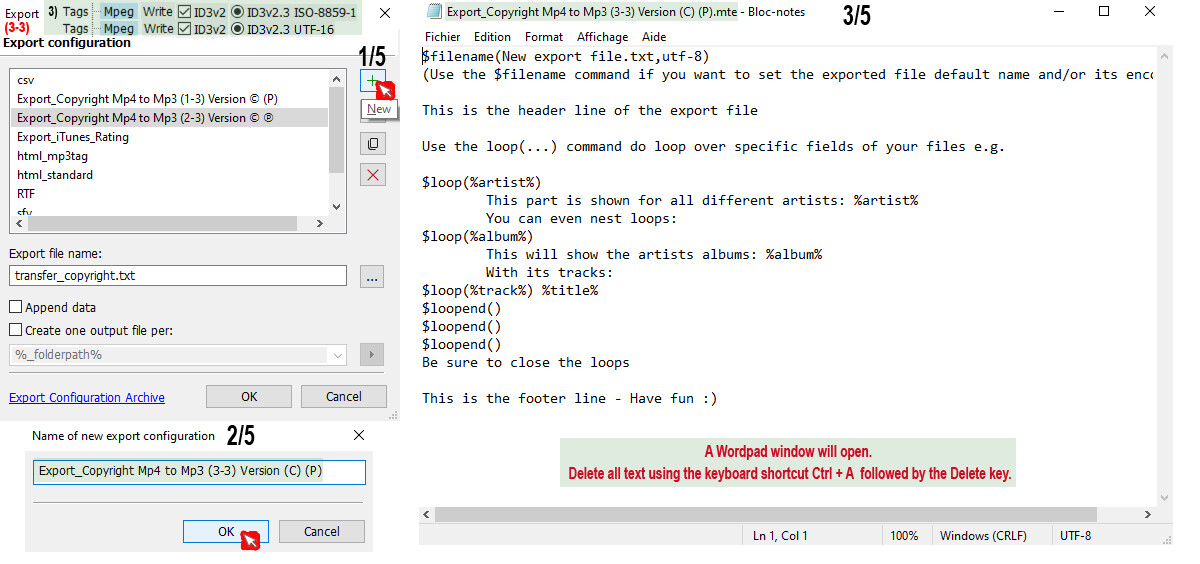
Export_Copyright Mp4 to Mp3 (3-3) Version (C) (P)

If you have older MP3 players that don't read the characters ℗ ©, the ℗ character will be replaced by (P) and the © character will be replaced by (C).

Press Ctrl + O to open the Options window, then click on the Tags > MPEG section.

This programming works with both MP3 options: The Mpeg section of Mp3tag

Mpeg
Write – √ ID3v2
• ID3v2.3 ISO-8859-1
and
• ID3v2.3 UTF-16


Click the Export icon (CTRL+E)

Export
Export configuration
Click the + (green) icon on the right (a third and final time)

Name of new export configuration
Export_Copyright Mp4 to Mp3 (3-3) Version (C) (P)

Click OK

A Wordpad window will open. Delete all the text using the keyboard shortcut Ctrl + A followed by the Delete key.

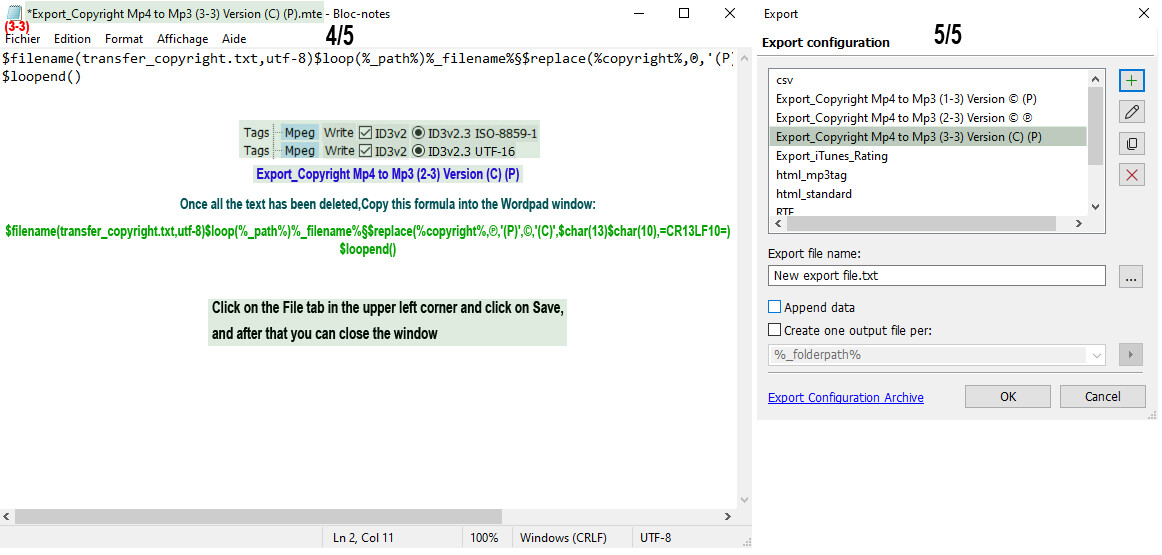
Copy this formula into the Wordpad window:

$filename(transfer_copyright.txt,utf-8)$loop(%_path%)%_filename%§$replace(%copyright%,℗,'(P)',©,'(C)',$char(13)$char(10),=CR13LF10=)
$loopend()


Click the File tab in the upper left corner and click Save. You can then close the window.

To help you, you will find in this section explanatory images illustrating how to program.

-=-=-=-=-=-=-=-=-=-=-=-=-=-=-=-=-=-=-=-=-=-=-=-=-=-=-=-=-=-=-=-=-=

03- Programming a Action command to copy MP4 data to MP3 files containing the same data.

To write Copyright tag data into your MP3 audio files:
Select the option in the bar: Filter for MP3 files only

1st Option:
Quick tip: Copy Copyright tag data from MP4 to MP3
If the Copyright tag value is identical for all your files, you can use a very fast "Actions" command.

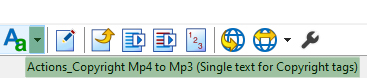
Command: Actions_Copyright Mp4 to Mp3 (Single text for Copyright tags)

Here's a quick option to send (paste) Copyright tag data from MP4 to MP3.

If you've noticed that all the Copyright tag data is the same, you can use a very fast Actions command.

MAKE SURE ALL THE COPYRIGHT TAGS ARE THE SAME BEFORE USING THIS Actions COMMAND.

Example:


Copyright:
(P) © 2017 Sparrow Records
Command: Actions_Copyright Mp4 to Mp3 (Single text for Copyright tags)

X
Copyright:
< keep >
You must use the command:
Text File – Tag
(See the programming section: 04- Programming a formula in Text File – Tag, for MP3 files)


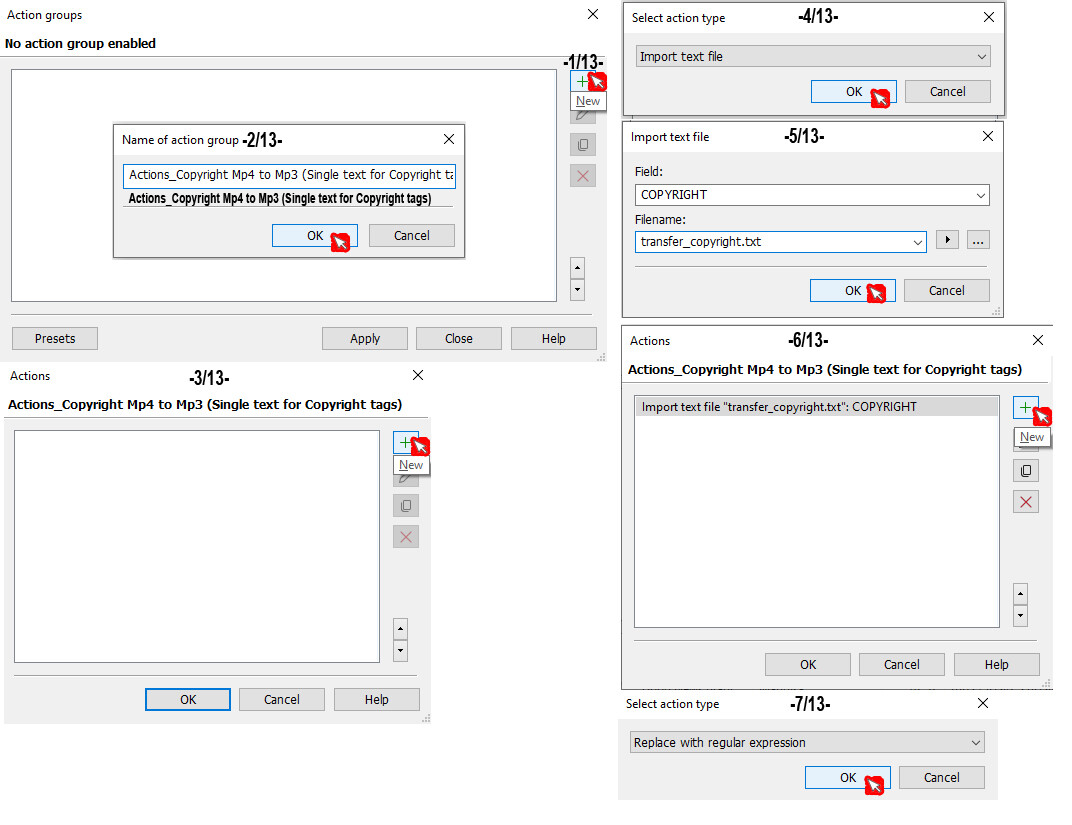
Actions_Copyright MP4 to MP3 (Single text for copyright tags)

To create this formula, click the Actions icon (Alt+6).

Click the + (green) icon to the right.

Name of action group:
Actions_Copyright MP4 to MP3 (Single text for copyright tags)

Click OK.

(1) Choose Import text file.

Click OK

Import Text file
Field: COPYRIGHT
Filename: transfer_copyright.txt

Click OK

And

Click the + (green) icon twice on the right

(2) Choose
Replace with regular expressions

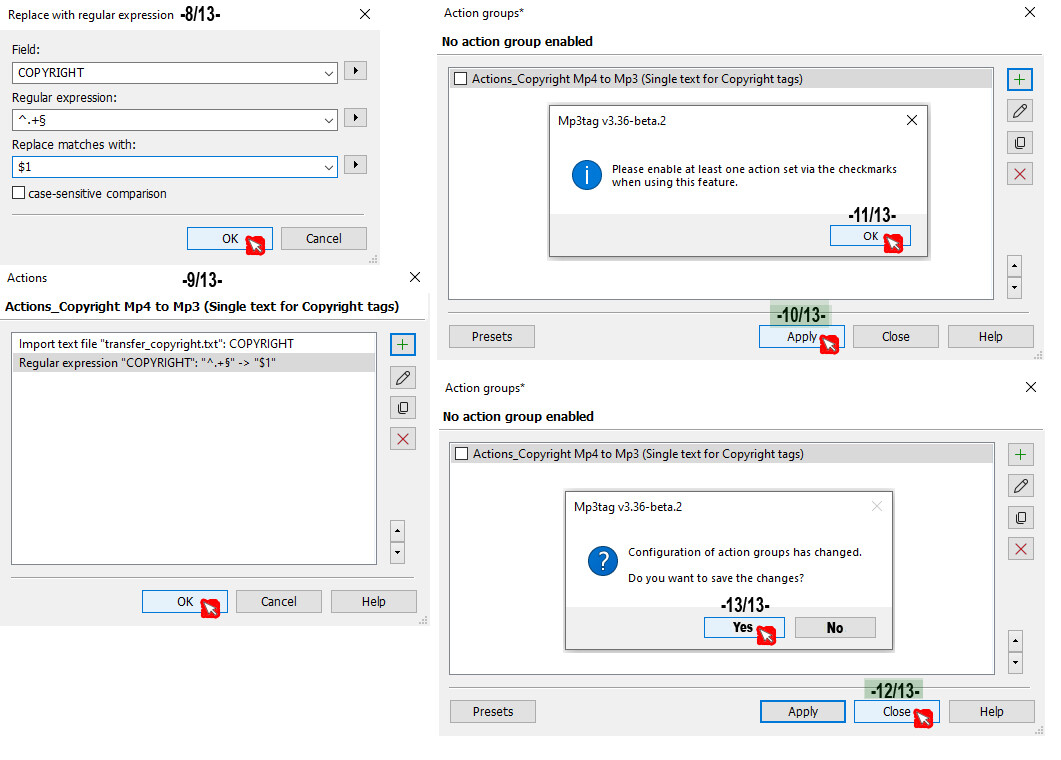
Field: COPYRIGHT
Regular expressions: ^.+§
Replace matches with: $1
ﬦ case-sensitive comparison

Click OK

Click OK at the bottom of the window

Click Apply
A window will open; click OK
Click Close

If you moved the Action command, a window will open in the Action command data list:
Configuration of action groups has changed.

Do you want to save the changes?

Click Yes

When you click to the right of the Action icon, on the small downward arrow icon, you can choose:

Actions_Copyright Mp4 to Mp3 (Single text for Copyright tags)


To help you, you will find in this section explanatory images illustrating how to program.


03-3)Actions_Copyright Mp4 to Mp3 (Single text for Copyright tags) IMAGE

-=-=-=-=-=-=-=-=-=-=-=-=-=-=-=-=-=-=-=-=-=-=-=-=-=-=-=-=-=-=-=-=-=

04- Programming a formula in Text File – Tag, for MP3 files

Regarding this 2nd option, I highly recommend this script to send your MP4 Copyright tag data to your MP3 files.

Features of the "Text file – Tag" command:

• Flexible management: Copies all your Copyright data to MP3 files, whether the text is identical or different from one file to another.

• Multiline support: Perfectly transfers Copyright tags that span multiple lines.
Your transfer steps from MP4 to MP3 format are now complete!

Tip: If the code =CR13LF10= appears in your Copyright tags, it simply indicates a line break. Do not panic! Go to the next step:

These 2 Actions commands will resolve the issues.

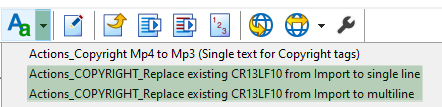
Actions_COPYRIGHT_Replace existing CR13LF10 from Import to single line
Actions_COPYRIGHT_Replace existing CR13LF10 from Import to multiline
(05- Special programming of two Action commands for managing multi-line Copyright tags.)


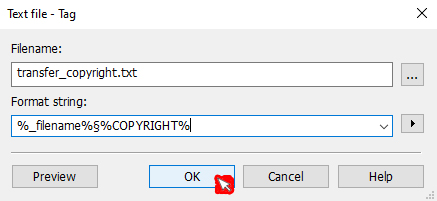
Text file - Tag

Filename:
transfer_copyright.txt

Format string:
%_filename%§%COPYRIGHT%

05- Special programming of two Action commands for managing multi-line Copyright tags.
If you placed the "Text file – Tag" order and see these codes in your data: =CR13LF10=

You will need this special setup involving two Action commands to handle Copyright tags containing multi-line data (MP3).

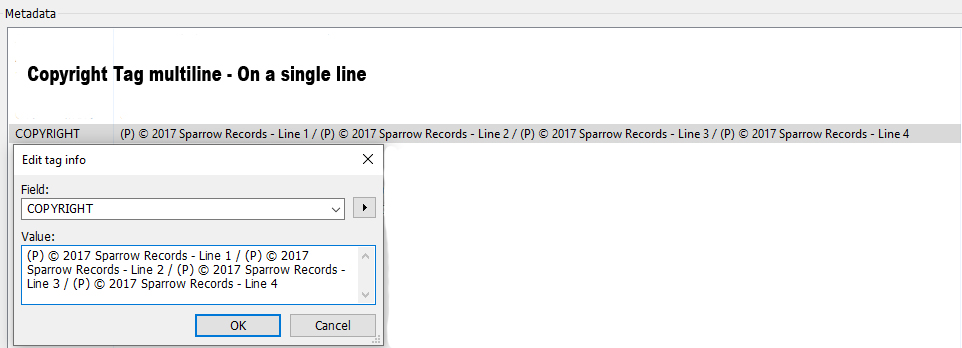
The first "Action" command allows you to integrate data from multiple lines into a single-line tag program; this copy operation places the data from each line onto a single line of your program, the script then inserts a space-surrounded slash ( / ) where each line break occurred, and the =CR13LF10= codes will no longer appear when writing to your Copyright tags…

The second "Action" command allows you to arrange data across multiple lines in programs that support this type of formatting, and the =CR13LF10= codes will no longer appear when writing to your Copyright tags…


To create the 2 Actions, click on the icon: Actions (Alt+6)

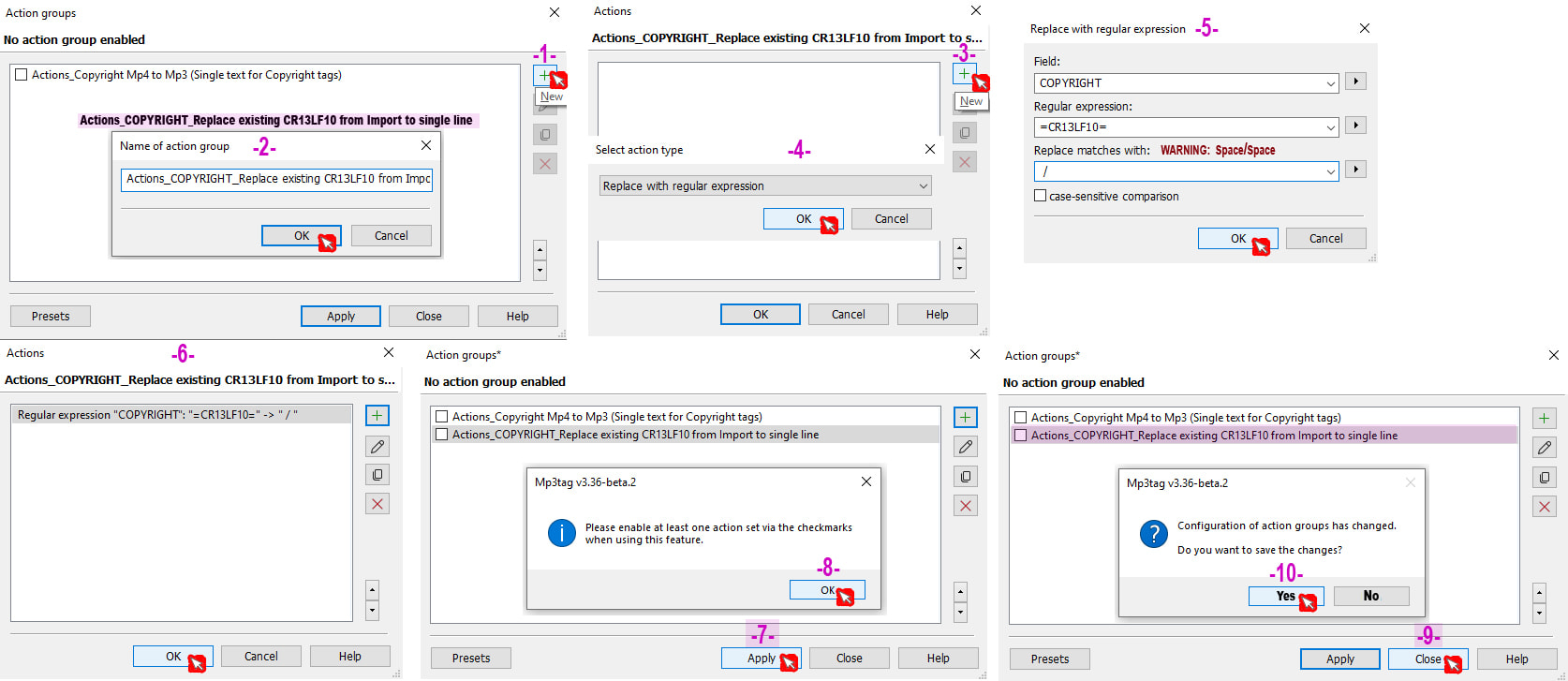
Actions_COPYRIGHT_Replace existing CR13LF10 from Import to single line
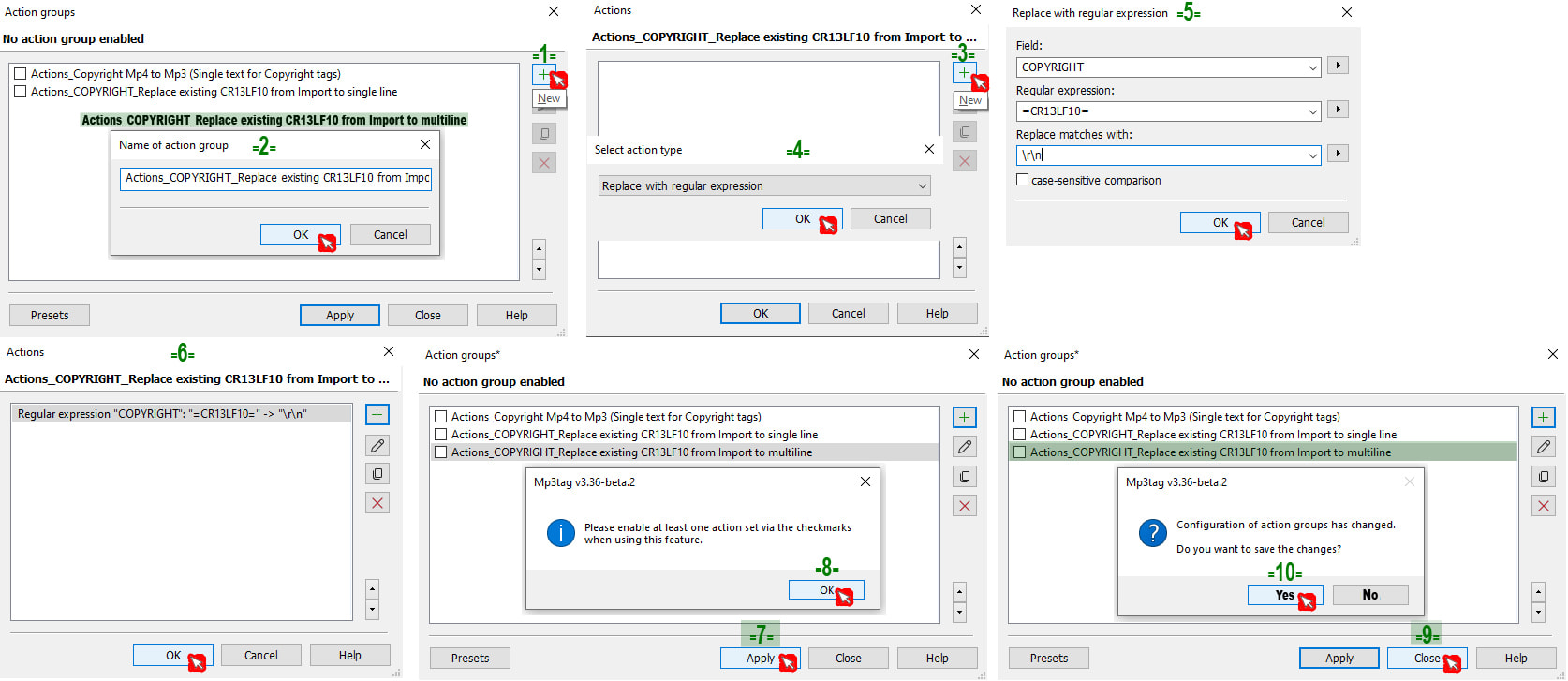
Actions_COPYRIGHT_Replace existing CR13LF10 from Import to multiline


We will create our first Actions command:

Click on the + (green) icon on the right

Name of action group
Actions_COPYRIGHT_Replace existing CR13LF10 from Import to single line

Choose
Replace with regular expressions

Field:
COPYRIGHT

Regular expression:
=CR13LF10=

Replace matches with: Warning: Space/Space
/

ﬦ case-sensitive comparison

Click OK

Click OK to close the second window

-=-=-=-=-=-=-=-=-=-=-=-=-=-=-=-=-=-=-=-=-=-=-=-=-=-=-=-=-=-=-=-=-=

We will create our second Actions command:

Click on the + (green) icon on the right

Name of action group
Actions_COPYRIGHT_Replace existing CR13LF10 from Import to multiline

Choose
Replace with regular expressions

Field:
COPYRIGHT

Regular expression:
=CR13LF10=

Replace matches with:

\r\n

ﬦ Case-sensitive comparison

Click OK

Click OK to close the second window

Click Apply
A window will open; click OK
Click Close

If you moved the Action command, a window will open in the Action command data list:
Configuration of action groups has changed.

Do you want to save the changes?

Click Yes

When you click to the right of the Action icon, on the small downward arrow icon, you can choose the appropriate Action command:

Actions_COPYRIGHT_Replace existing CR13LF10 from Import to single line

Or

Actions_COPYRIGHT_Replace existing CR13LF10 from Import to multiline


To help you, you will find in this section explanatory images illustrating how to program.

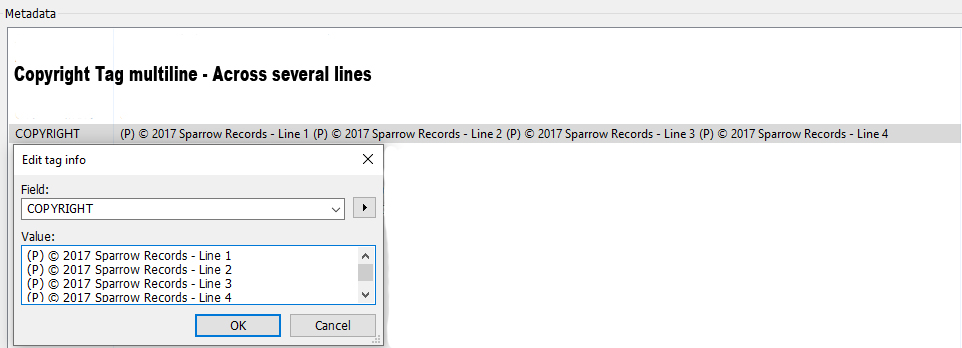
You can also view two Mp3tag Metadata images showing a multi-line "Copyright" tag (spanning four lines) transferred to a single-line "Copyright" tag; the script inserted a slash surrounded by spaces ( / ) at the location of each line break.

-=-=-=-=-=-=-=-=-=-=-=-=-=-=-=-=-=-=-=-=-=-=-=-=-=-=-=-=-=-=-=-=-=