Love Mp3tag, use it daily. Always use the context menu. Recent reinstall, context menu option gone. No amount of reinstalling, or clean installing, or restarting or any of it could fix it.
The solution in another thread of forcing a dll register from the cmd interface would probably work except many of us really aren't familar with it, and when I tried it, it wouldn't accept several versions of the cd command.
Then I used an another awesome app that I've had for years. Filemenu Tools. It is also a explorer context menu tool. It has a mountain of options, and one of them is register a dll. Worked perfectly right clicking on Mp3tagShell.dll. Now it's back.
Might be useful for others. And it's an awesome tool for other purposes too.
If you're talking about Filemenu Tools from Lopesoft, just a quick note:
This tool is no longer for free (since about 10 years).
(Perhaps it is free to register a DLL, but you cannot define custom context commands or an unlimited number of files/folders. The free licence only lets you use the existing context menu commands with up to 20 files/folders. The licence currently costs 9.99 EUR per computer.)
Yes, the full version of Filemenu Tools has a one time charge. But the free version has almost all of the features, including dll register. The paid version lets you batch process more files for certain commands. I paid for it a few years ago when I wanted to do a batch advanced rename on a bunch of files.
If I'd thought about it a bit more after reading more, I probably would have realized that I could just open a command prompt right on the dll and run regsvr32, and that would work fine, as mentioned. Although it's the 'full quoted path' that gives me trouble, and definitely other people too. Have to use the right syntax, apparently.
You could navigate to the folder in which you find the dll and copy the path (which is then fully-qualified) form the address field, go to the command prompt, paste it behind the cd command word.
The prompt should show the new path.
If the cd command issues an error message, try the same but this time the path enclosed in ".
Type this command powershell
and press Ctrl+Shift+Enter at the end of powershell
-> This opens a PowerShell command window with Administrator rights, if you confirm the UAC (User Account Control) with Yes.
In the PowerShell window that opens, copy & paste this one-liner: regsvr32 (Get-ChildItem C:\ -Filter Mp3tagShell.dll -Recurse -File -ErrorAction SilentlyContinue | Select-Object -First 1 -ExpandProperty FullName)
and press Enter (This PowerShell command searches your entire C: drive for the required Mp3tagShell.dll and automatically executesregsvr32command for the first found Mp3tagShell.dll with its fully-qualified path.
Hint: This would not work if you have installed Mp3tag in multiple directories or on different architectures, such as 32-bit and 64-bit.
See the alternative way at the end of this post.)
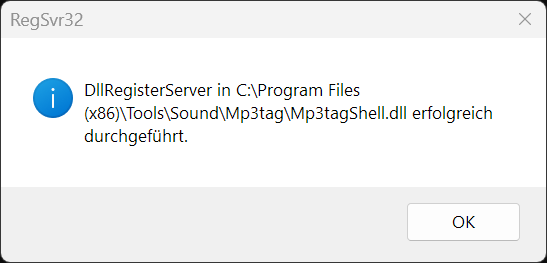
If successfully executed, you get a confirmation popup like this:
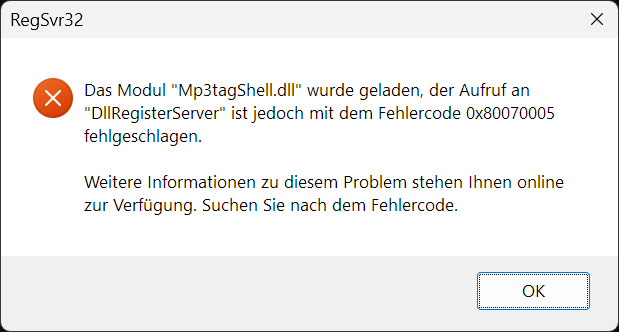
then you tried to execute the above one-liner command without valid Administrator rights.
If you are looking for a real manual way or if you have installed multiple Mp3tag installations (in different directories or different architectures):
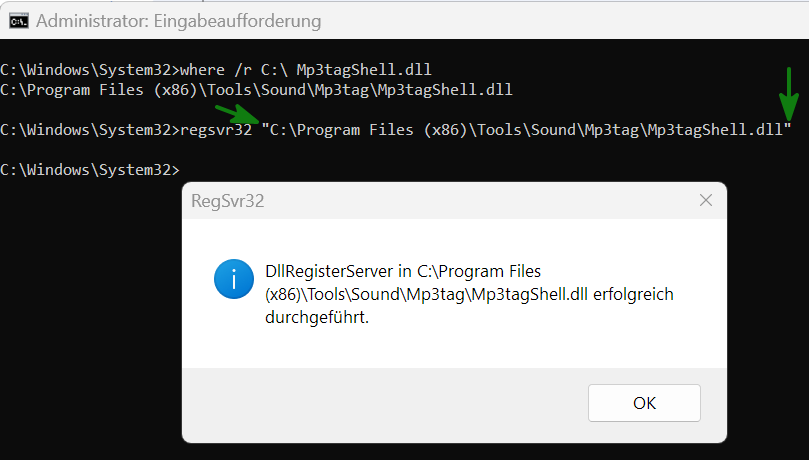
Open a CMD window with Administrator rights (Win-Key, cmd, Ctrl+Shift+Enter)
Type where /r C:\ Mp3tagShell.dll and press Enter
Type regsvr32 and copy & paste the MATCHING found path. Make sure you enclose the pasted path in double quotation marks, especially if there are spaces in the path: