Another way to automatically* find the Mp3tagShell.dll an execute regsvr32 with it:
-
Press the windows key on your keyboard:
-
Type this command
powershell
and press Ctrl+Shift+Enter at the end ofpowershell
-> This opens a PowerShell command window with Administrator rights, if you confirm the UAC (User Account Control) with Yes. -
In the PowerShell window that opens, copy & paste this one-liner:
regsvr32 (Get-ChildItem C:\ -Filter Mp3tagShell.dll -Recurse -File -ErrorAction SilentlyContinue | Select-Object -First 1 -ExpandProperty FullName)
and press Enter
(This PowerShell command searches your entire C: drive for the required Mp3tagShell.dll and automatically executesregsvr32command for the first found Mp3tagShell.dll with its fully-qualified path.
Hint: This would not work if you have installed Mp3tag in multiple directories or on different architectures, such as 32-bit and 64-bit.
See the alternative way at the end of this post.) -
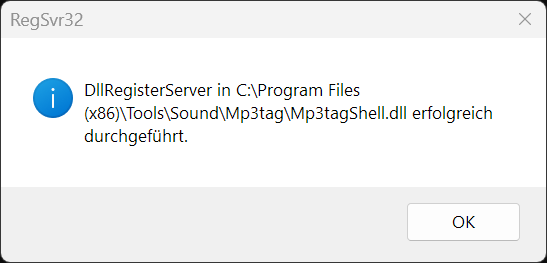
If successfully executed, you get a confirmation popup like this:
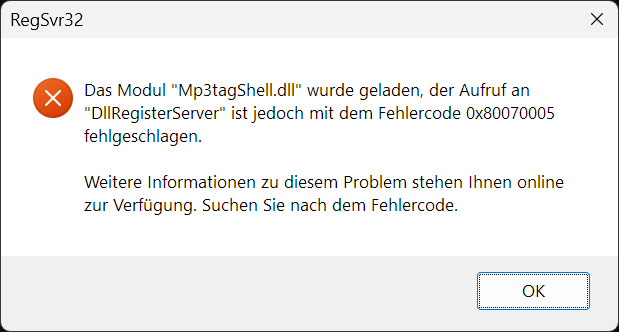
If you get an error like this:
then you tried to execute the above one-liner command without valid Administrator rights.
If you are looking for a real manual way or if you have installed multiple Mp3tag installations (in different directories or different architectures):
-
Open a CMD window with Administrator rights (Win-Key,
cmd, Ctrl+Shift+Enter) -
Type
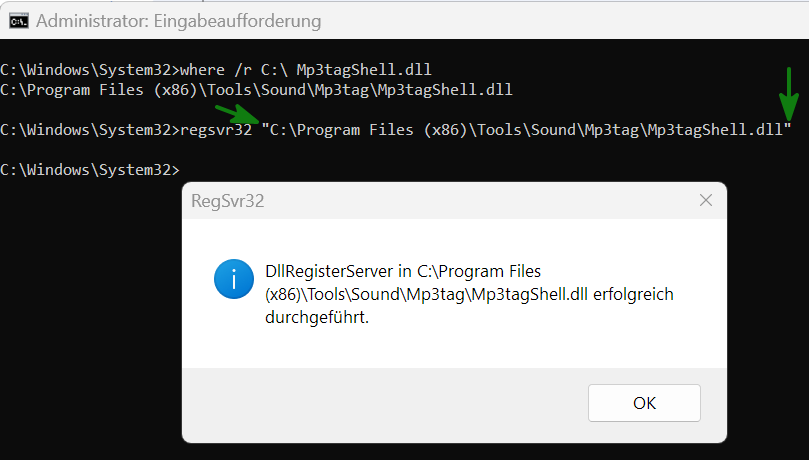
where /r C:\ Mp3tagShell.dlland press Enter -
Type
regsvr32and copy & paste the MATCHING found path. Make sure you enclose the pasted path in double quotation marks, especially if there are spaces in the path:
* The above instructions provide an alternative to the instructions here: