I discovered a very easy way to update that [COMMENT ITUNNORM] that confuses the comment field in windows vs mp3 tags.
First, I used Alt-T to view those hidden fields.
Then simply select the files you want to update. Select ALL if you want to do it wholesale.
Then using the Tag - Tag function from the menu.
In the drop-down box select the Field you want to update, in this case COMMENT ITUNNORM
Leave the Format String empty. Press OK
Works like a champ and can help clearing out other tags you want to globally empty or fill for that matter.
Worked for me!
Alternatively, you can select the unwanted field directly in Alt+T and delete it by clicking the red x button:

Deleting a field completely is the same as update it with an "empty content".
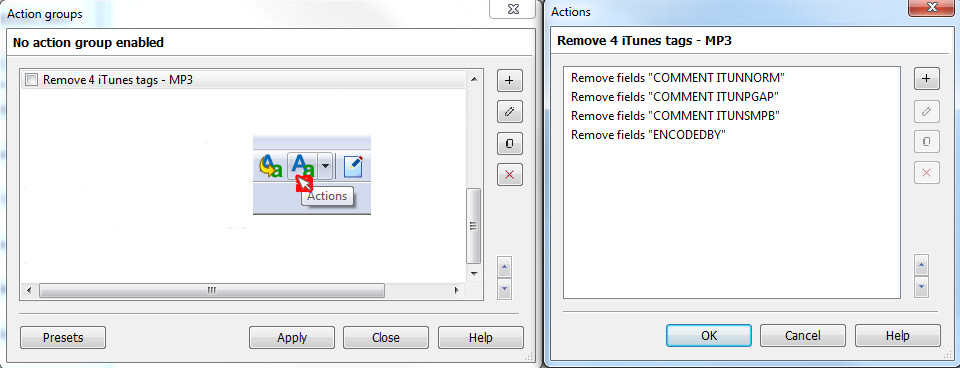
If you have a list of fields that you always want to keep or a list of fields that you always want to remove, then an action to treat fields could make it easier for you:
Hello @Ramtrol,
Here are two examples of how to remove the [COMMENT ITUNNORM] tag, which interferes with the COMMENT tag...
When we receive MP3 audio files from iTunes, we have four iTunes tags. We can easily remove them using the ACTIONS command, as @ohrenkino suggested.
Here are two ways to do it with the Actions command:
-
Directly using the Actions command
-
The Mp3tag program now allows us to program: The two customizable icon bars, by adding icons available in Mp3tag, or you can choose and/or create your own icons as I did...
See my 2 images