Sorry but it has done so for me, and did until this morning (update: apologies I now realise that what I thought was a column was actually the panel -thanks for the help.)
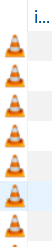
Do you mean this first column: which looks like this in my setting?
This is just the symbol of the default player software associated with your music format.
You can set it in your Windows OS to whatever (installed) player you like.
But as @ohrenkino said: The Windows version of Mp3tag has never had a real cover art preview in a column.
BTW: You can enable the Tag Panel on the left with Ctrl + Q.
And you can arrange it wherever you like it.
The tag panel does show the album art in the way I am used to, this is certainly a useful work around.
BUT I really did used to have a column showing a preview of the album art, have had for years and now it has gone. (update: I now realise this was actually the panel on the left)
In fact I realise I used to have the entire tag panel in a column on the left but now I have to invoke it by Ctrl Q. I will try to move it to the left of the screen, but I can live with if floating or at the top.
I have now discovered the thin double lines and so have moved the panel to the left.
I apologise to those I contradicted when they told me tat an art preview had never existed in a column. Because I had always had the panel on the left I had interpreted this as a column.
If you exit the app, Mp3tag remembers the state.
So, if you enable the Tag Panel (Ctrl + Q or Menu: View > Tag Panel) and then exit Mp3tag, the panel - including the cover art section - will reappear automatically when you next start Mp3tag.
The same is true for the position of the Tag Panel.
Please take a look at this guide on how to manually move the tag panel to its 4 useful positions:


 which looks like this in my setting?