Installing locally via Package Manager on Arch-based Distros
Community Package (unofficial)
Install via paru -S mp3tag, octopi, yay etc.
As I don't use this approach personally, you'd have to ask the maintainers of the package for help, I just want to mention that this exists as an option.
Portable installation on Linux via Wine
Optional Prerequisite:
Store Mp3tag on a NAS share
This is useful if you intend to access the same Mp3tag instance from multiple hosts in the same network.
I mount an NFS share from my NAS to /mnt/mp3tag/ on my host systems on boot via fstab.
First, create the folder into which you intend to mount the NFS share:
sudo mkdir /mnt/mp3tag
Next, edit /etc/fstab:
sudo nvim /etc/fstab
(You can use whichever text editor you like, for example nano in the cli or Kate as a gui alternative.)
Add a line similar to this:
192.168.0.1:/mnt/tank4/Mp3tag /mnt/mp3tag nfs defaults,nofail 0 0
To test that the mount works, first reload the daemon:
systemctl daemon-reload
Then manually mount the share:
sudo mount /mnt/mp3tag
The share will be automatically mounted upon boot until you remove the line from /etc/fstab.
Setting up the Wine Prefix
Create and configure a new Wine prefix for Mp3tag (or use the default prefix if you prefer):
WINEPREFIX=/home/$USER/.mp3tag/ winecfg
Installation
Download the latest installer from the download page
Then install it:
WINEPREFIX=/home/$USER/.mp3tag/ wine mp3tag-v3.34.1-x64-setup.exe
During the installation, make sure to select the portable installation and set the destination to the folder you chose (Z:\mnt\mp3tag\Mp3tag for me).
Updating Mp3tag
Download the latest installer and run it with the same Wine prefix:
WINEPREFIX=/home/$USER/.mp3tag/ wine mp3tag-v3.35-beta.1-x64-setup.exe
Choose the same destination you chose initially when updating the portable version.
Dark Mode
If you want to use the Dark Mode in Mp3tag, you have to change the Wine config:
WINEPREFIX=/home/$USER/.mp3tag/ winecfg
Set Desktop → Interface Appearance to No Theme
It might also be a good idea to change the screen resolution in the Graphics tab if you have a high ppi monitor and don't want to scale within Mp3tag.
Regedit to enable dark mode
Create a file called wine-mp3tag-dark.reg wherever you like, I keep mine beside the portable Mp3tag installation on the NAS.
nvim /mnt/mp3tag/wine-mp3tag-dark.reg
Paste this:
Windows Registry Editor Version 5.00

[HKEY_CURRENT_USER\Control Panel\Colors]
"ActiveBorder"="49 54 58"
"ActiveTitle"="49 54 58"
"AppWorkSpace"="60 64 72"
"Background"="49 54 58"
"ButtonAlternativeFace"="200 0 0"
"ButtonDkShadow"="154 154 154"
"ButtonFace"="49 54 58"
"ButtonHilight"="119 126 140"
"ButtonLight"="60 64 72"
"ButtonShadow"="60 64 72"
"ButtonText"="219 220 222"
"GradientActiveTitle"="49 54 58"
"GradientInactiveTitle"="49 54 58"
"GrayText"="155 155 155"
"Hilight"="119 126 140"
"HilightText"="255 255 255"
"InactiveBorder"="49 54 58"
"InactiveTitle"="49 54 58"
"InactiveTitleText"="219 220 222"
"InfoText"="159 167 180"
"InfoWindow"="49 54 58"
"Menu"="32 32 32"
"MenuBar"="49 54 58"
"MenuHilight"="119 126 140"
"MenuText"="219 220 222"
"Scrollbar"="73 78 88"
"TitleText"="219 220 222"
"Window"="35 38 41"
"WindowFrame"="49 54 58"
"WindowText"="219 220 222"
and save the file.
To apply the dark theme, use:
WINEPREFIX=/home/$USER/.mp3tag/ wine regedit /mnt/mp3tag/wine-mp3tag-dark.reg
If you want to undo the theme change, create another file called wine-reset-theme.reg:
nvim /mnt/mp3tag/wine-reset-theme.reg
Paste this:
Windows Registry Editor Version 5.00

[HKEY_CURRENT_USER\Control Panel\Colors]
"ActiveBorder"=-
"ActiveTitle"=-
"AppWorkSpace"=-
"Background"=-
"ButtonAlternativeFace"=-
"ButtonDkShadow"=-
"ButtonFace"=-
"ButtonHilight"=-
"ButtonLight"=-
"ButtonShadow"=-
"ButtonText"=-
"GradientActiveTitle"=-
"GradientInactiveTitle"=-
"GrayText"=-
"Hilight"=-
"HilightText"=-
"InactiveBorder"=-
"InactiveTitle"=-
"InactiveTitleText"=-
"InfoText"=-
"InfoWindow"=-
"Menu"=-
"MenuBar"=-
"MenuHilight"=-
"MenuText"=-
"Scrollbar"=-
"TitleText"=-
"Window"=-
"WindowFrame"=-
"WindowText"=-
and save the file.
To reset the theme, use:
WINEPREFIX=/home/$USER/.mp3tag/ wine regedit /mnt/mp3tag/wine-reset-theme.reg
The steps above are a slight adjustment of the guide found here.
I only changed "Menu"="49 54 58" to "Menu"="32 32 32" to better fit Mp3tag's design.
Known limitations of the Dark Mode:
When Mp3tag is set to Dark, many menu entries are invisible.
For example: File → Option... → General appears empty.
Workaround:
- Set Mp3tag to
Lightmode viaFile→Option...→Appearance→ (first dropdown menu) - Perform setting changes (all are visible in
Lightmode) - Set Mp3tag to
Darkmode viaFile→Option...→Appearance→Color Mode
Importing your existing config from Windows
- In Windows, in Mp3tag, use
File→Save Configuration... - Save the resulting
Mp3tagSettings.zipfile (I usually prepend the current date). - In Windows or Linux, extract the contents of this file into the base directory of your portable Mp3tag installation.
Linux command line example, assuming you saved Mp3tagSettings.zip beside your portable installation:
unzip -o /mnt/mp3tag/Mp3tagSettings.zip -d /mnt/mp3tag/Mp3tag/
Desktop File
To conveniently list Mp3tag in program launchers, a .desktop file is needed.
Such a file usually resides in ~/.local/share/applications/ and we'll name it mp3tag.desktop
nvim ~/.local/share/applications/mp3tag.desktop
Paste this:
#!/usr/bin/env xdg-open
#launch_mp3tag.desktop
[Desktop Entry]
Name=Mp3tag
GenericName=Tag Editor
Exec=env WINEPREFIX="/home/$USER/.mp3tag" wine "/mnt/mp3tag/Mp3tag/Mp3tag.exe"
Type=Application
StartupNotify=true
Icon=/mnt/mp3tag/mp3tag.png
Categories=Multimedia;Wine;
The file paths and Wine prefix need to match your setup. Adjust them, then save the file.
I sourced the icon here and stored it beside the portable installation on the NAS.
Context Menu
While dragging and dropping works out of the box, many of us are used to selecting folders or files and opening them in Mp3tag via the right-click menu. To add Mp3tag to the Open With menu for folders and specific file types, you need to know their MIME types.
Then this functionality can be achieved with a .desktop file and a helper script.
Create the .desktop file:
nvim /home/$USER/.local/share/applications/mp3tag-open-with.desktop
Paste:
[Desktop Entry]
Type=Application
Name=Mp3tag
MimeType=inode/directory;audio/flac;audio/mpeg;audio/mp4;
Exec=/bin/bash /mnt/mp3tag/mp3tag-context-menu.sh %F
NoDisplay=true
StartupNotify=true
Icon=/mnt/mp3tag/mp3tag.png
This adds Mp3tag to the Open With menu for folders, .flac, .mp3 and .m4a files. If you want it to be available for other file types as well, identify their MIME type via:
file --mime-type yourexamplefile.ogg
and add it to the MimeType list, delimited by ;.
Create the helper script:
nvim /mnt/mp3tag/mp3tag-context-menu.sh
Paste:
#!/bin/bash

WINEPREFIX="/home/$USER/.mp3tag" wine "/mnt/mp3tag/Mp3tag/Mp3tag.exe" /fn:"Z:$1" &
sleep 0.5
shift
for filename
do
    WINEPREFIX="/home/$USER/.mp3tag" wine "/mnt/mp3tag/Mp3tag/Mp3tag.exe" /add /fn:"Z:$filename" &
    sleep 0.01
done
Make it executable:
chmod +x /mnt/mp3tag/mp3tag-context-menu.sh
The helper script is needed to make Mp3tag work like on Windows. It opens Mp3tag with the first file/folder (or clears existing entries from the list if Mp3tag was already running) and then adds the rest of the files/folders.
NOTICE:
Mp3tag behaved weirdly without the delays between the commands (not clearing the file list before adding new files or only adding a subset of the selected files).
Should you encounter these issues, try raising the delays. The first delay ensures that Mp3tag has enough time to start up. If you for example open 3 files in Mp3tag but the first file is not added, raise the first sleep value. The second one determines the speed at which Mp3tag is passed the /add commands for all subsequent files.
Fonts
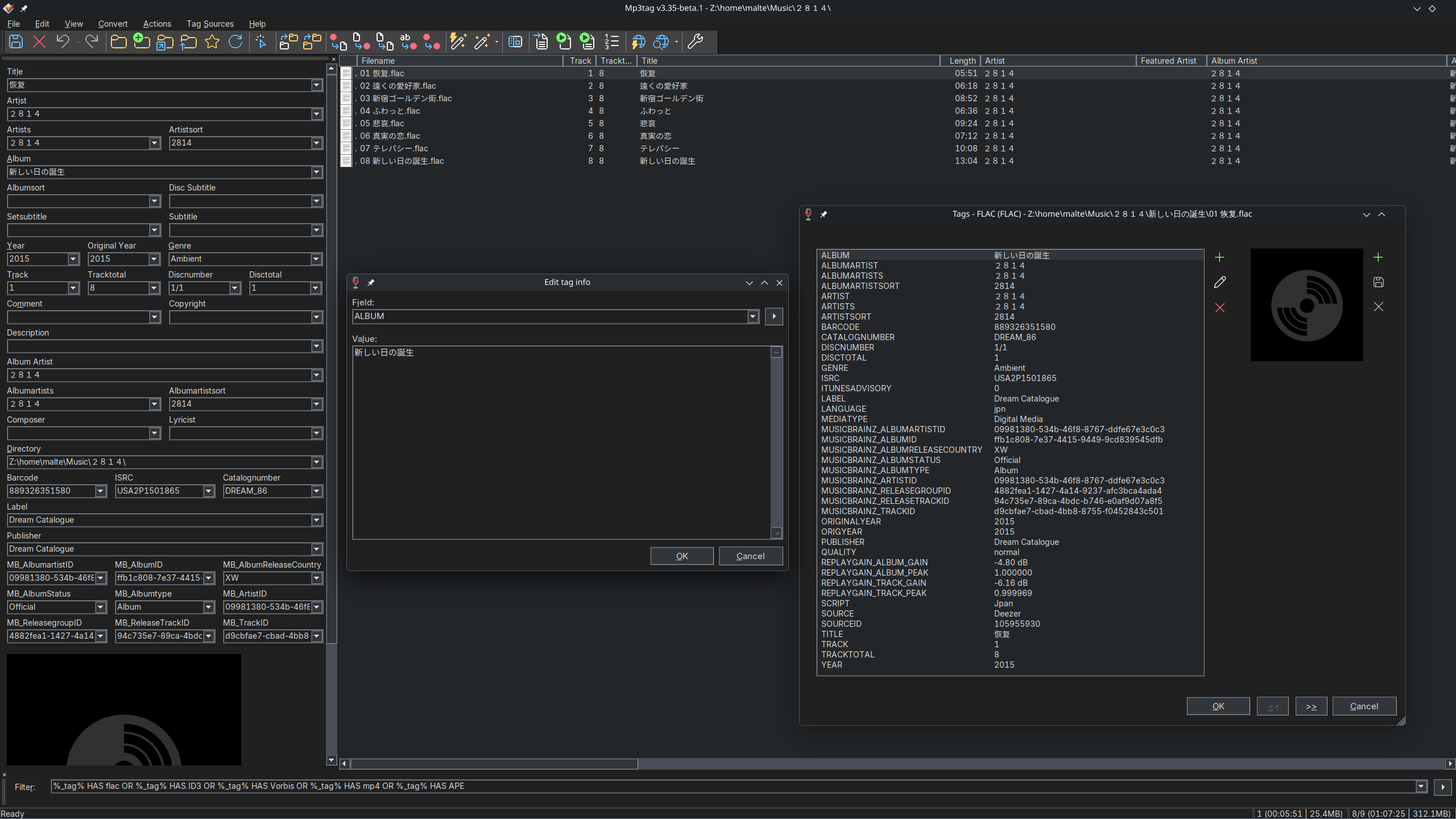
You might notice that Mp3tag does not properly display unicode symbols or characters from different languages out of the box and instead displays them as literal boxes: □ (pun intended).
To fix this, two things are needed:
Installing a CJK font
A font needs to be installed that can handle the characters of the languages you use.
I went with Sarasa Gothic UI in the Sarasa UI CL variant, which I installed on the host.
You can skip this step if a font with sufficient character coverage is already installed on your system.
Replacing the font in Wine's registry
Create a file called wine-replace-font.reg wherever you like, I keep mine beside the portable Mp3tag installation on the NAS.
nvim /mnt/mp3tag/wine-replace-font.reg
Paste this:
Windows Registry Editor Version 5.00

[HKEY_CURRENT_USER\Software\Wine\Fonts\Replacements]
"MS Shell Dlg 2"="Sarasa UI CL"

[HKEY_LOCAL_MACHINE\Software\Microsoft\Windows NT\CurrentVersion\FontSubstitutes]
"Tahoma"="Sarasa UI CL"
If you are using a different font, you have to replace both instances of Sarasa UI CL with the exact name of the font you chose.
Then save the file.
To apply the font replacement:
WINEPREFIX=/home/$USER/.mp3tag/ wine regedit /mnt/mp3tag/wine-replace-font.reg
If you want to undo the font replacement, create another file called wine-reset-font.reg:
nvim /mnt/mp3tag/wine-reset-font.reg
Paste this:
Windows Registry Editor Version 5.00

[HKEY_CURRENT_USER\Software\Wine\Fonts\Replacements]
"MS Shell Dlg 2"=-

[HKEY_LOCAL_MACHINE\Software\Microsoft\Windows NT\CurrentVersion\FontSubstitutes]
"Tahoma"=-
To remove the font replacement:
WINEPREFIX=/home/$USER/.mp3tag/ wine regedit /mnt/mp3tag/wine-reset-font.reg
Do note that this removes the font replacements for MS Shell Dlg 2 and Tahoma. It does not restore a pre-existing replacement. If you want to ensure that you can restore the original state of the Wine prefix registry, I suggest using:
WINEPREFIX=/home/$USER/.mp3tag/ wine regedit
to note the initial state of HKEY_CURRENT_USER\Software\Wine\Fonts\Replacements and HKEY_LOCAL_MACHINE\Software\Microsoft\Windows NT\CurrentVersion\FontSubstitutes.
Tools
You can use Linux native applications as Mp3tag tools by navigating to their executables mounted under Z:.
Z:\usr\bin\firefox for example.
Parameter path translation
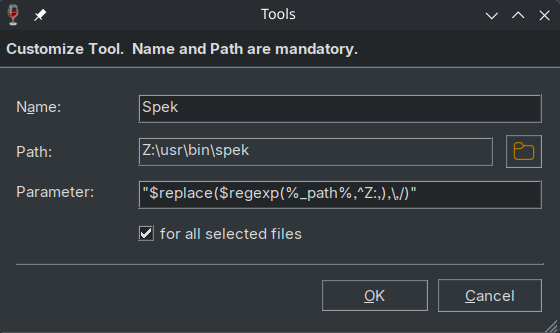
Do note that some parameters listed in the docs need to be transformed from Windows paths to Linux paths to work. For %_path% this means removing the prepended Z:, replacing each \ with a / and surrounding the result in ".
Instead of using %_path%, use "$replace($regexp(%_path%,^Z:,),\,/)".
Beware:
This does not work if the path or filename contains ".
Example:
Here is a Spek tool I use to quickly display spectrograms for all selected tracks:
Result:
Disclaimer:
I have tested these steps on CachyOS KDE (Wine 11.9) and Fedora 44 KDE (Wine 11.0 Staging) but it's not guaranteed that everything works exactly the same way on other distributions.
This guide is aimed at intermediate to advanced users who already know their way around Linux and the command line. Follow it at your own risk.
If you find mistakes in the guide or ways to improve it, do let me know.
A big thank you goes out to @Florian for helping me with the various issues I had!
Attachment:
I have zipped up mp3tag.png, wine-mp3tag-dark.reg, wine-reset-theme.reg, wine-replace-font.reg and wine-reset-font.reg for convenience.
Mp3tag on Linux.zip (48.4 KB)
Update History
2026-05-28 Added Context Menu instructions
2026-09-10 Added Tool instructions