I found a similar topic from 2015 Remove Album Art?
but it doesn’t seem to work at all and there seem to be inconsistencies with the name %album%%_cover_mimetype%.jpg and %album%_%cover_mimetype% that are said in the post there. At any rate when I did the export I wind up with all the album covers exported, and none is having any type, they all just show as png or jpg. Then when I try and import using the %album%%_cover_mimetype%.jpg name nothing happens and I have to undo the cover removal.
Noting that this wouldn’t be necessary except on a phone I have right now the phone refuses to see my Album Artist and Artist fields and 700 / 5600 files are coming up as unknown artist. I noticed that all of them seemed to have multiple embedded files and it came up as a problem in MP3Diags, except when I ran option 4 on it in MP3Diags, it removed all except the last apic frame looks like cause for one example it showed that cover #5/5 was the only remaining one, and it appeared to be some sort of windows generated thumbnail I’d picked up at some point cause it was the cover but 140x140 size. Terrible.
So I am wondering, I am finding this operation only in the Quick Actions. Is there another place to look for it? Have I got the right operation for export cover to file? Is there some way to set the properties of the main cover as a ‘front cover’ or something? What can I do?
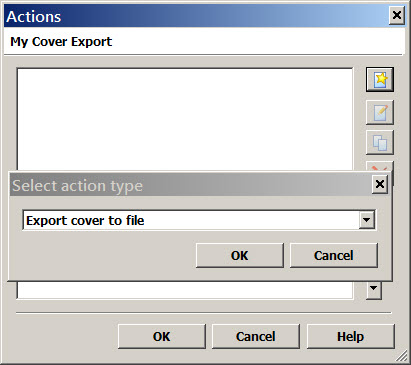
From the Actions main menu, create a new Action, name it, and then select the action type, as shown below:
I'll let others respond to your other questions.
%_cover_mimetype% does not contain any data when you import. the mimetype is defined by the picture/file type.
You would have to use a string like e.g.
%album%_front.jpg
The real string may depend on what you used to create the picture file name.
When you import, you have to add an extension as MP3tag cannot guess whether you want to get Revolver_front.jpg or Revolver_front.png.
Perhaps you want to use %_cover_type% to get "front", "back" etc. as part of the export file name and then use e.g. *front.jpg for import.
I don’t know what happened I had these all set and I put them on my one phone, which was also having this issue. I used WinMerge to determine what was going on with all the bad files which I exported from Musicolet and then moved to the computer to compare. Unfortunately they may have been deleted. So I am moving them back off the phone there, and going to keep another copy of them from that phone. I don’t think there was this problem before, in fact I am not at all sure that there is any problem with the files just because of the extra frames for pictures. I may have deleted them at that time. What a headache the mp3s are. Every year I have to do something like this.!!!
I really have a hard time understanding your programming language. You put the % only on one side the last time you said it, which confuses me. Because most of the time the % is on both sides.
oops, I guess that was misreading or it changed, I don’t know. But how do I get the pictures to be a type? They all just read as “Other” at the top of the artwork interface.
I’m going to try with that _cover_type as part of the export. What’s the worst that can happen. Just have to see.
Then the cover type is set to "other" ...
You could still export these pictures as you get the suffix (x) for cover files with the same name but different properties.
Then you import the files without the (1) or (2) in the name as "front" and set the action to delete existing covers.
(Example)